HID Omnikey 5427 G2 Setup to Read HID iClass Cards
First, make sure you have installed both of the drivers linked below:
EEM Driver: https://www.hidglobal.com/drivers/34881
(EEM Driver needed to access reader management interface at http://192.168.63.99)
Do not turn off the EEM interface while the reader is in Keyboard wedge mode; this turns off the embedded web server for configuration and may lock-out access to the reader.
CCID Driver: https://www.hidglobal.com/drivers/39910
(HID-specific CCID Driver - Needed if using Workbench)
You can use our OMNIKEY Workbench Tool to test reader functionality and perform basic card reading functions as well: HID® OMNIKEY® Workbench Tool 2.4 for Windows | HID Global
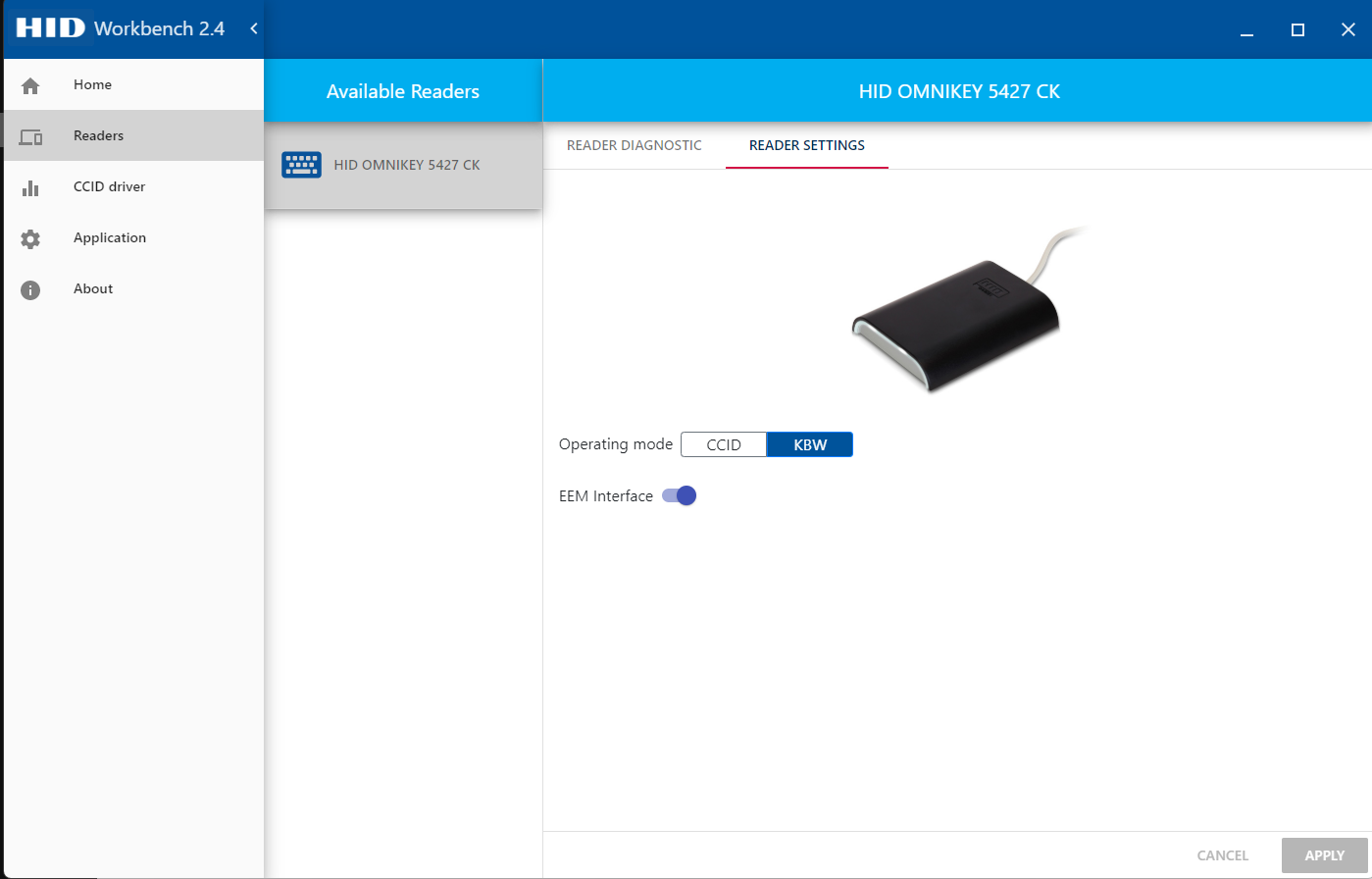
In OmniKey Workbench Tool once installed, Select “Readers” – “HID OMNIKEY5427 CK” – “READER SETTINGS” – and switch operating mode to “KBW”. Accept the prompt and apply.
Page 67
1: http://192.168.63.99/ and follow the steps below.
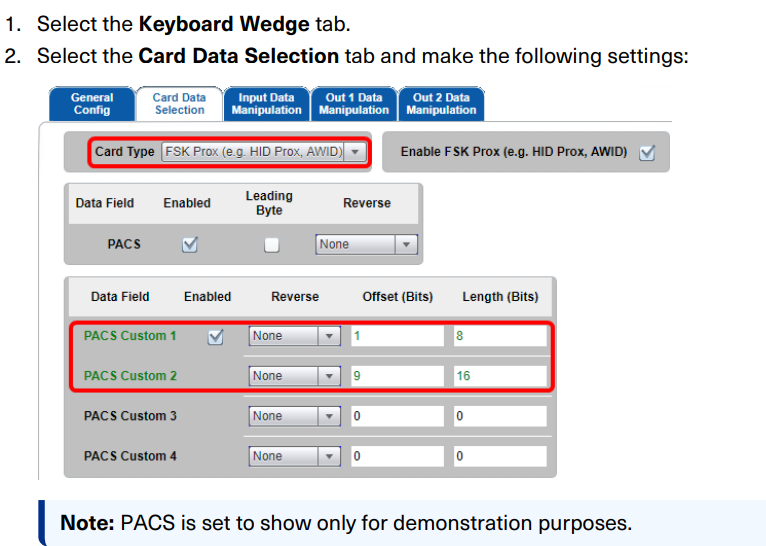
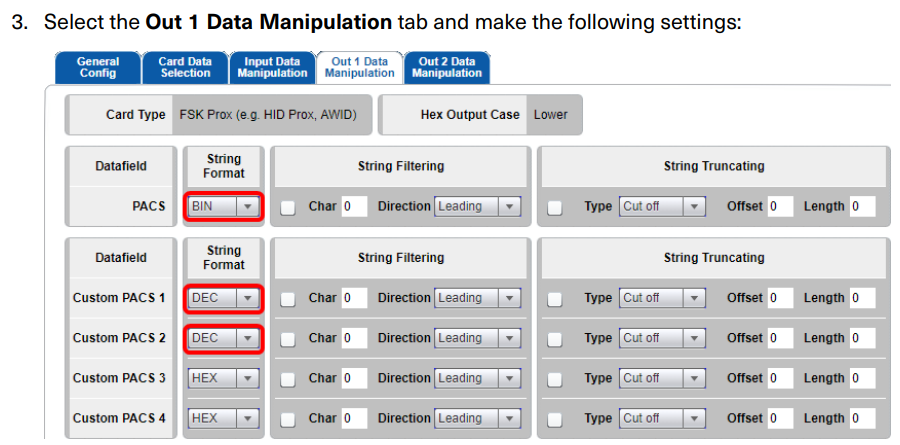
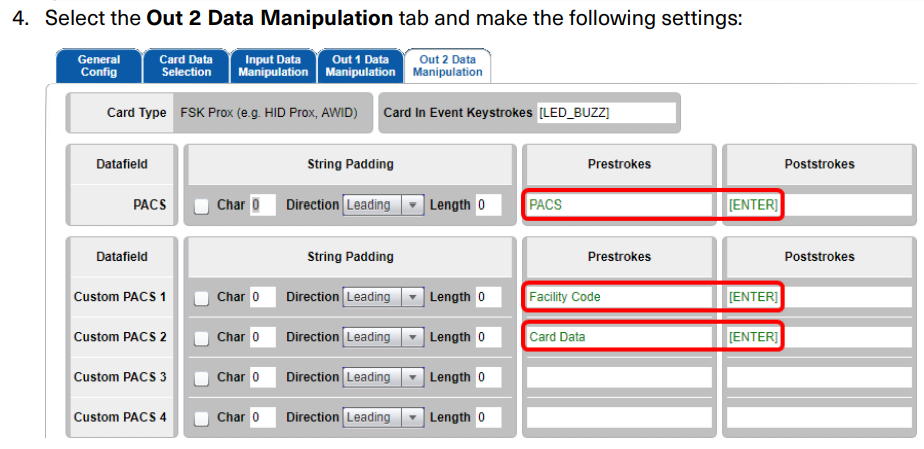
(I put =0 at the end of Card Data / CN because our cards are only 4 digits, but the system reads 5.
Any output (EG, 8429) will have a 0 added before it. So in this case, 08429 as CN, 21 as FC.
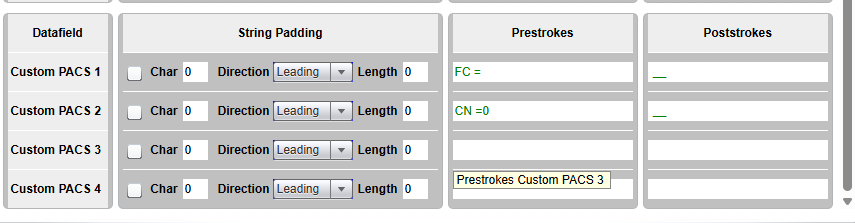
Now when scanning the card into Word or Notepad it should pump out data like this:
PACS00001010100011111110100110
FC =21 __ CN =08147 __
The important numbers are FC = 21 (Facilities Code if written out fully)
And Card Number = 8147 (08147 if the 0 is added in the custom settings)
Was this article helpful?
That’s Great!
Thank you for your feedback
Sorry! We couldn't be helpful
Thank you for your feedback
Feedback sent
We appreciate your effort and will try to fix the article