Go to the following location, open the scan test app.
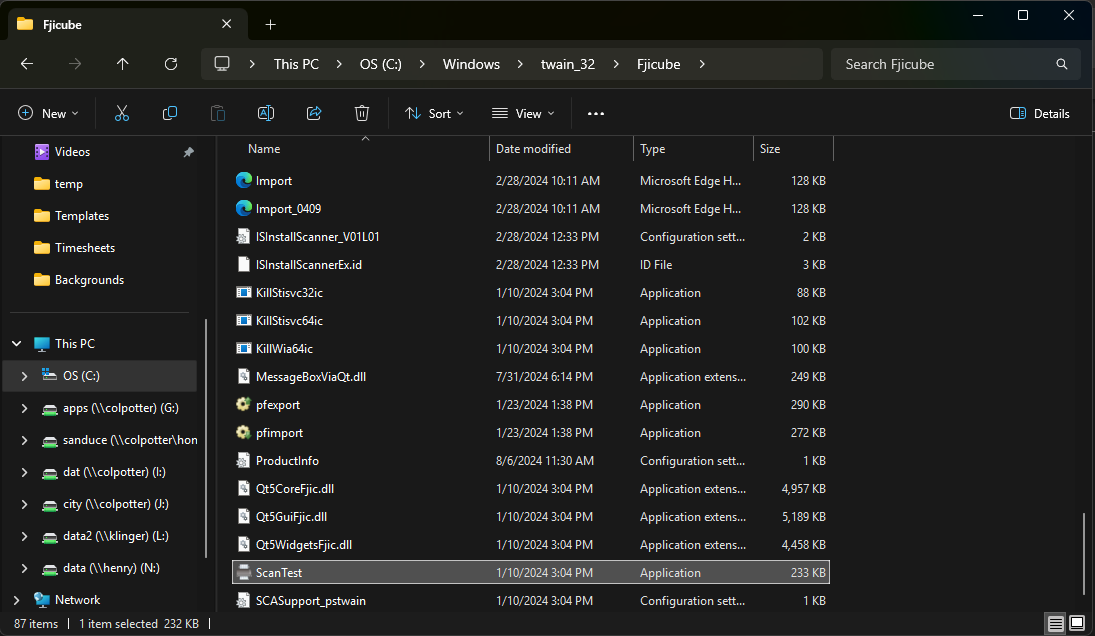
Choose “Select Scanner”. Look for the fi-8040 scanner on the list. If not there, open device manager as admin.
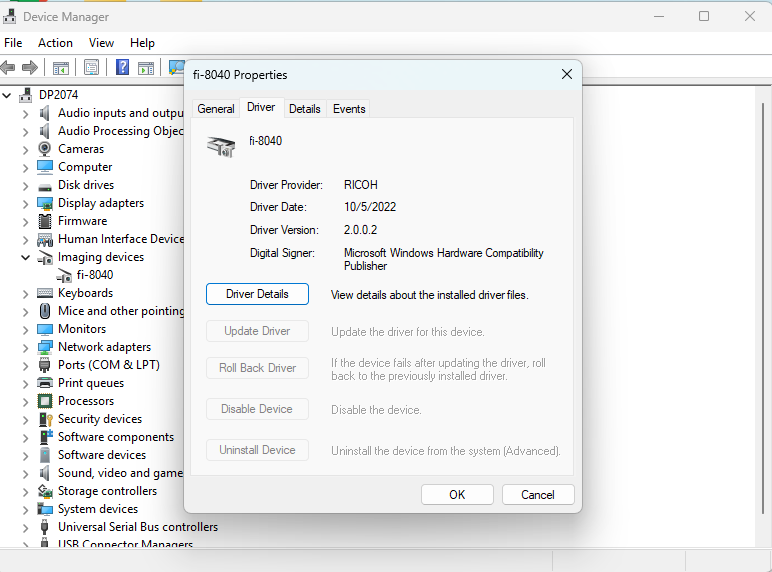
Under imaging devices, confirm the fi-8040 appears.
Double click fi-8040.
Select “Update Driver”
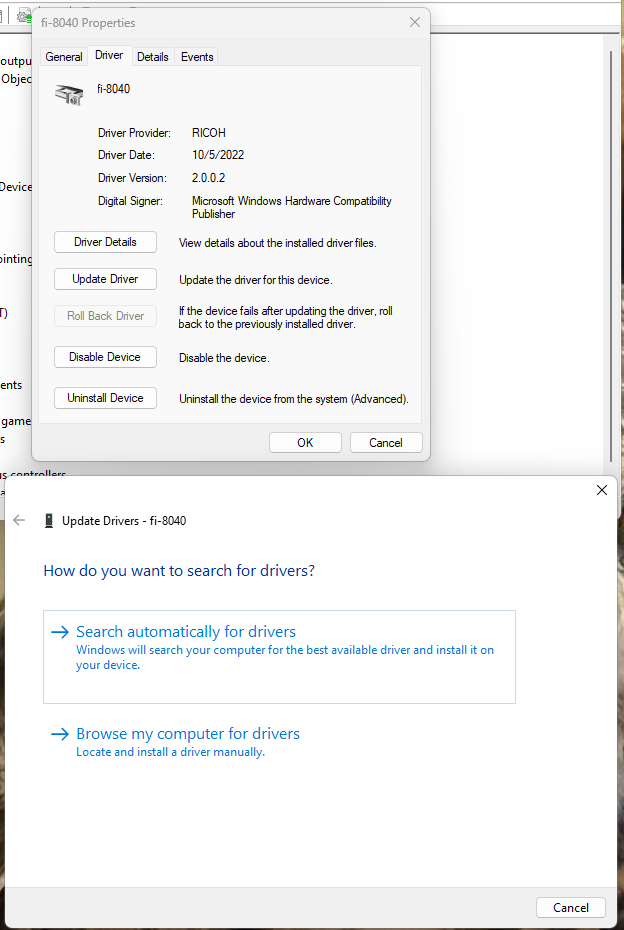
Choose “Let me pick from a list of available drivers on my computer”
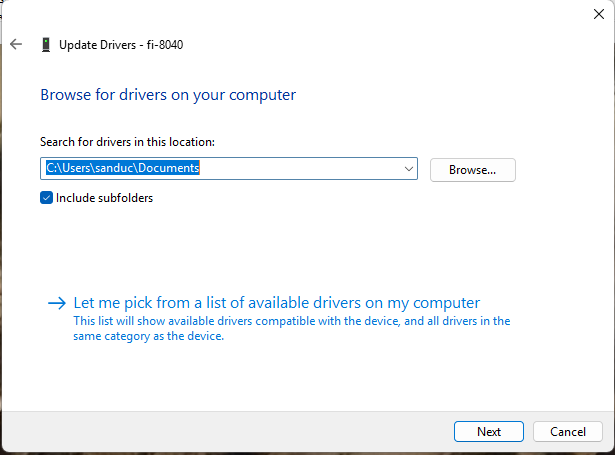
When the issue is occurring, there will be 2 drivers, both named the same. Select the second one. This image only contains one, but you would select the one underneath.
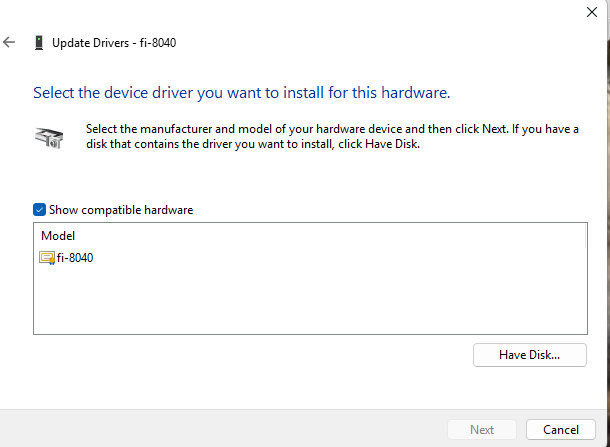
Afterwards, go back to the test scan app. The FI-8040 should now be in the options. Paperstream IP should now work.
To select the scanner to scan to the paperstream app by default:
Open Devices and Printers
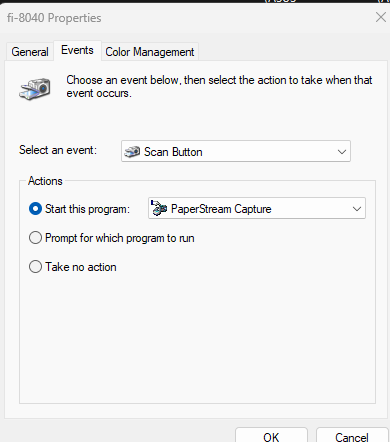
Right click the fi-8040 and select scan properties
Choose the events tab
Select “Start this program”, and choose “Paperstream capture”.
Was this article helpful?
That’s Great!
Thank you for your feedback
Sorry! We couldn't be helpful
Thank you for your feedback
Feedback sent
We appreciate your effort and will try to fix the article