
MIS Department Policy & Procedure
Document Name: | Setting up Ricoh Scanner Fi-8040 Series | Document Type: | Procedure |
Written by: | Christopher Sandu | Date/Revision Date: | 02/27/2025 |
Plug in the scanner with an A/C adapter, and plug in the printer -> USB cable into the computer.
This method should be similar for any other FI series scanner.
http://ricoh-usa.com/en/products/pd/equipment/scanners/fi-8040-scanner
Select Drivers
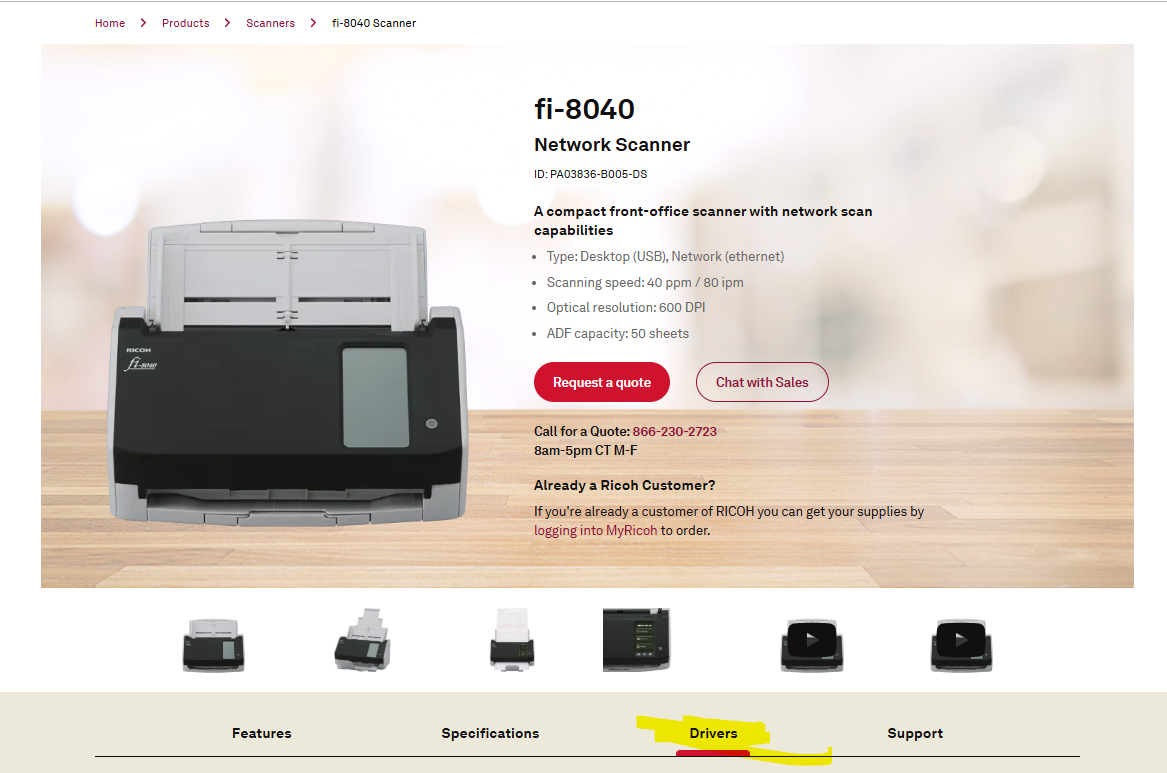
Click on “Download Drivers and Utilities”

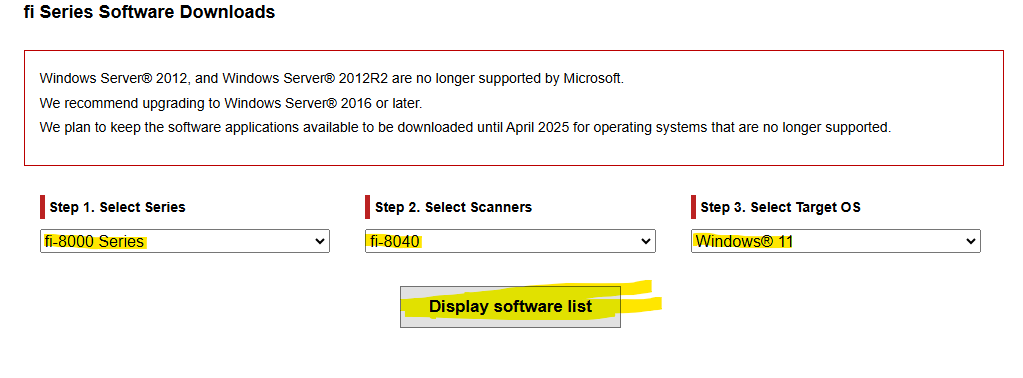
Select the options based on your scanner and version of Windows as listed below, then press “Display Software Lift”
Under Setup Programs, download the laters “TWAIN” Driver
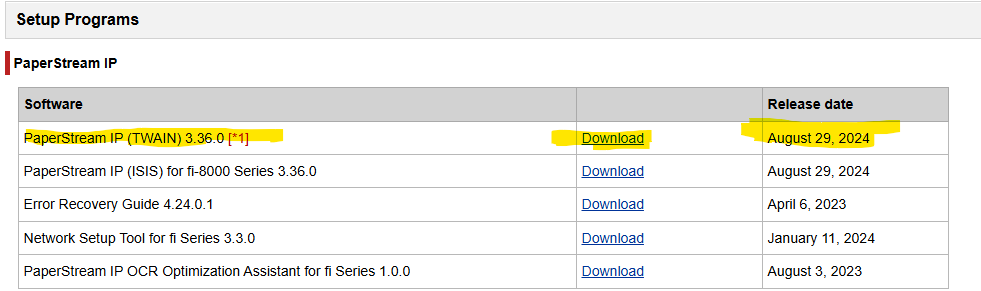
After downloading, run the exe.
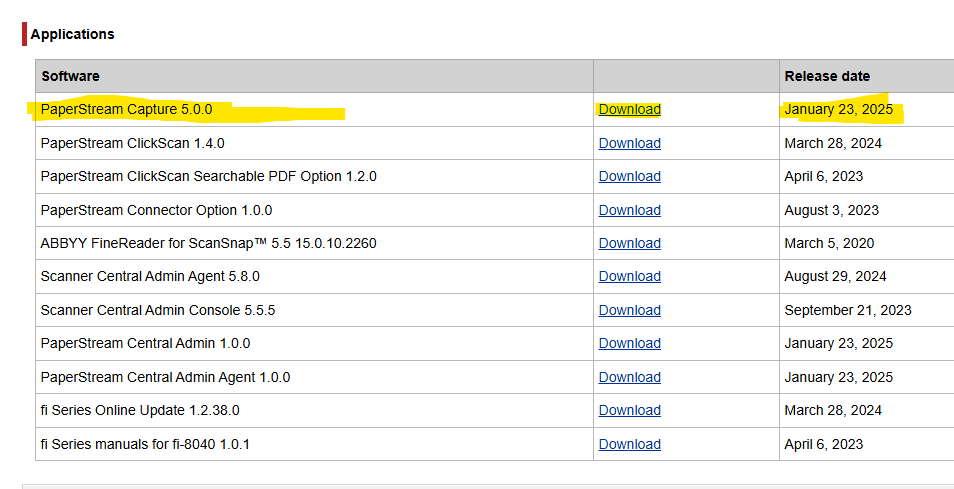
Under applications, download the latest PaperStream capture
*OPTIONAL* Check to see if the scanner appears in “Device Manager” under “Imagine Devices”. Sometimes it takes a minute to show up.
Test a scan from the interface on the scanner. Generally try 5+ pages to make sure it functions.
Was this article helpful?
That’s Great!
Thank you for your feedback
Sorry! We couldn't be helpful
Thank you for your feedback
Feedback sent
We appreciate your effort and will try to fix the article