Intro
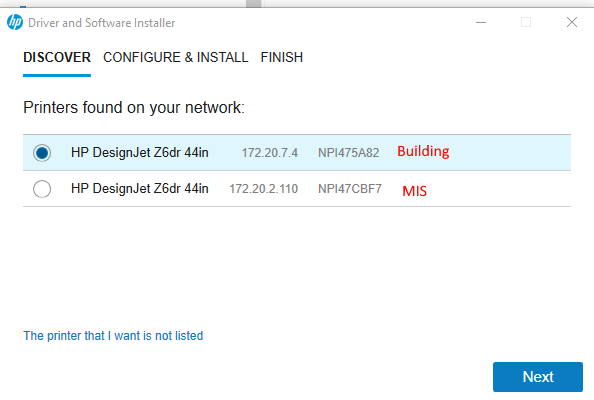
Building Department - 172.20.7.4
Keep in mind that these plotters must be turned on in order to install them. If they are off, HP software will not be able to find them.
Procedure
Run the software located here: “G:\Install\Printer Drivers\HP Z6DR Plotter'' and let it extract to the user’s computer (you have to run as administrator).
The setup wizard should launch automatically. If not, you can find the executable in “C:\Users\[username]\AppData\Local\Temp\HP DesignJet and PageWide XL Installer” folder
Select the appropriate printer from the list:
Next, choose “Custom Installation”
You will get the choice between the “PDF” driver and the non-PDF driver (see below). It seems like the PDF driver works best for GIS, while the non-PDF driver works best for regular users (such as Building Dept). Choose the driver accordingly.
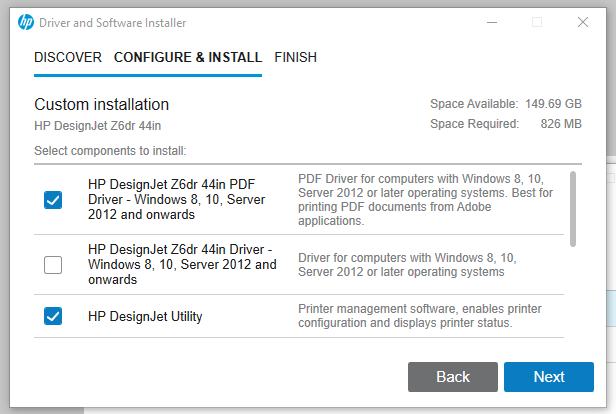
Additionally, you will have the option to select different aspects of the HP software to install. Select “HP DesignJet Utility”, “HP Print Preview”, “HP Click”, and “ICC Profiles for HP DesignJet Z6”. Click Next to begin installation.
Once completed, open “Control Panel”, then “Devices and Printers”. You should now see the plotter listed under “HP DesignJet Z6dr 44in V4”
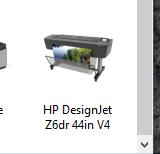
Right-click the printer and then click “Printer properties”
Rename the printer to “MIS Plotter” or “BUI Plotter”, as appropriate.
The printer should now be ready for use.
Was this article helpful?
That’s Great!
Thank you for your feedback
Sorry! We couldn't be helpful
Thank you for your feedback
Feedback sent
We appreciate your effort and will try to fix the article