PipeTech Installation Revised 10/03/2019
PipeTech License Manager Utility
In order to use PipeTech, a user must first be set up in the PipeTech License Manager utility (running on the Walter server). There is 1 license for editing videos,1 for GIS integration (currently only Nick Costanzo needs access to those modules), and 4 concurrent licenses for the “query engine” (the only module required for viewing videos). If necessary to add a user:
Click the ”Add User” button.
Enter the user’s Windows login ID in the “Windows User Account Name” field.
Select the modules to which the user needs access. If the user will just be viewing videos (not editing), select only “Query Engine”. Click “OK”.
Click Save and close the license manager.
The user must also belong to the Active Directory rights group “PubSewerVideoCreators”, so if necessary, add them to the group.
Installing PipeTech View
Requires:
.Net 3.5 SP1 (g:\install\mistools\Microsoft and IE updates\dot net 3.5 sp1\Windows10) – do to this, open a command prompt as an administrator and run this code:
Dism /online /enable-feature /featurename:NetFX3 /All /Source:"\\colpotter\apps\Install\Microsoft Windows\11 - 22H2\sources\sxs" /LimitAccess
Microsoft Interop Forms Toolkit (g: \Install\mistools\Microsoft and IE updates\ MicrosoftInteropFormsToolkit\ microsoft.interopformsredist.msi)
Copy v drive mapping batch file to the desktop (found in i:\eng\san sewer\video inspection\sewervideobackup\Map V Drive-Shortcut) - Execute batch file to map v drive.
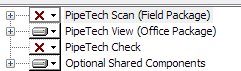
Run G:\Install\Openapps\PipeTech\PTInstall60b32.msi, select “PipeTech View (Office Package)"& “Optional Shared Components”.
Open PipeTech. Accept the license agreement, click the “Network License” button. Browse to
G:\appdata\DPS\Eng\PipeTech\license\Network2019.lic. Click “Open” & PipeTech should open.
In the "Select a PipeTech Inspection Library, click “Add", browse to V:\Video\Rochester Hills PACP.ptl , and click “Open”. You should now see the library list of videos.
NOTE: If the mapped networked drives do not appear (i.e. the V: drive), see the Registry Hack below.
Click File on the menu bar and select “Auto-Open Current Library List”:
Exit PipeTech and re-open it to verify that the library list will be displayed automatically.
-----------------------------------------------------------------------------------------------------------------------------
Registry Hack
To configure the EnableLinkedConnections registry value
Click Start, type regedit in the Start programs and files box, and then press ENTER.
Locate and then right-click the registry subkey HKEY_LOCAL_MACHINE\SOFTWARE\Microsoft\Windows\CurrentVersion\Policies\System.
Point to New, and then click DWORD Value.
Type EnableLinkedConnections, and then press ENTER.
Right-click EnableLinkedConnections, and then click Modify.
In the Value data box, type 1, and then click OK.
Exit Registry Editor, and then restart the computer.
Log into Beans or Corn and remove the computer from the group Remove Local Admins:
Right click rh.gov, search for “remove”, double click the group, then go to Members tab and remove the computer you are installing Pipe Tech on.
Was this article helpful?
That’s Great!
Thank you for your feedback
Sorry! We couldn't be helpful
Thank you for your feedback
Feedback sent
We appreciate your effort and will try to fix the article