Authorizing Updated ArcMap License

for Individuals
Updated 1/29/2025
1 Click "Start"
1
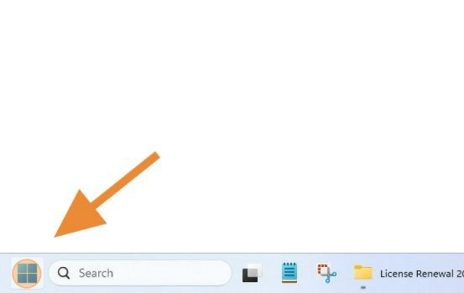
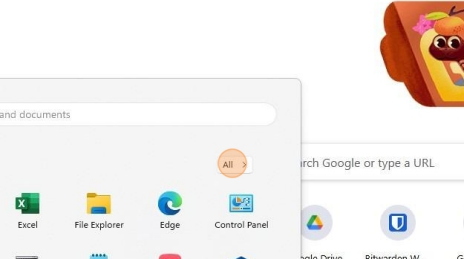
2 If ArcMap is not pinned to Start, click "All"
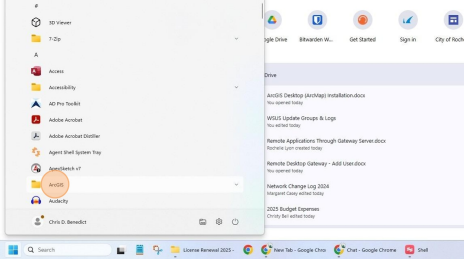
3 Click "ArcGIS folder"
2
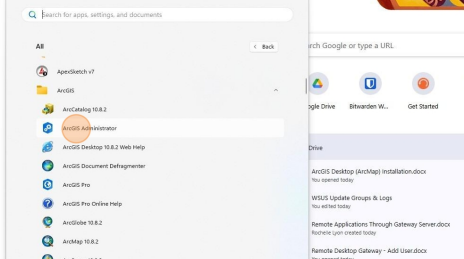
4 Click "ArcGIS Administrator"
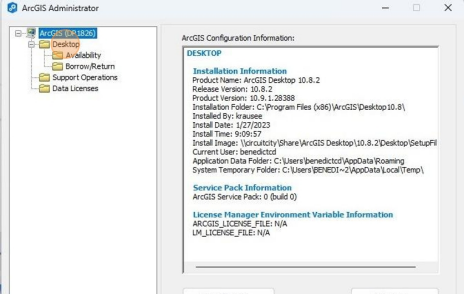
5 Click "Desktop"
3
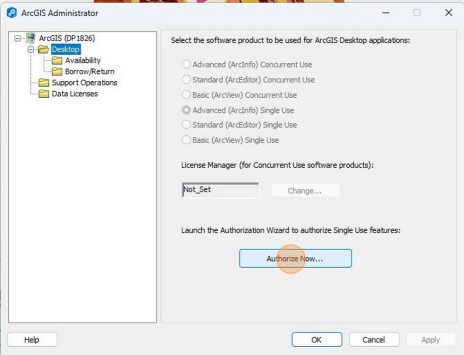
6 Click "Authorize Now..."
4
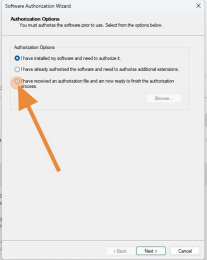
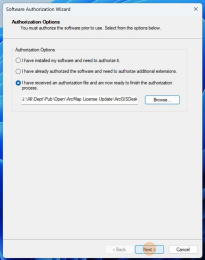
7Click "I have received an authorization file and am now ready to finish the authorization process."
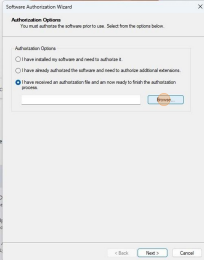
8 Click "Browse..."
5
9Navigate to "\\colpotter J: Ä AllÄ Dept Ä Pub Ä Open Ä ArcMap License Update Ä ArcGISDesktopAdvanced_SingleUse_1517018"
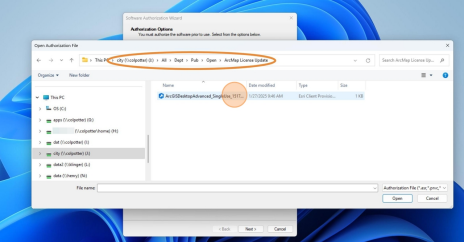
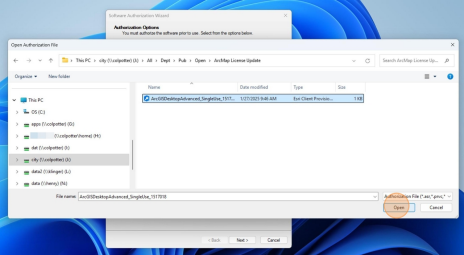
10 Double-click file or select and click "Open"
6
11 Click "Next"
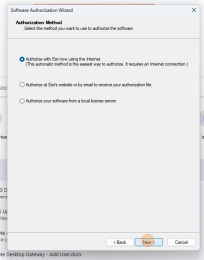
12 Leave selection on "Authorize with Esri now using the Internet" then click "Next"
7
13 Click "Next"
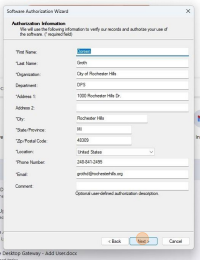
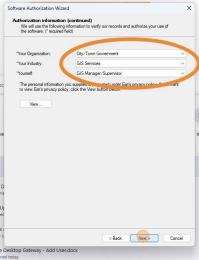
14 Click the three drop-down menus and select the appropriate information, then click "Next"
8
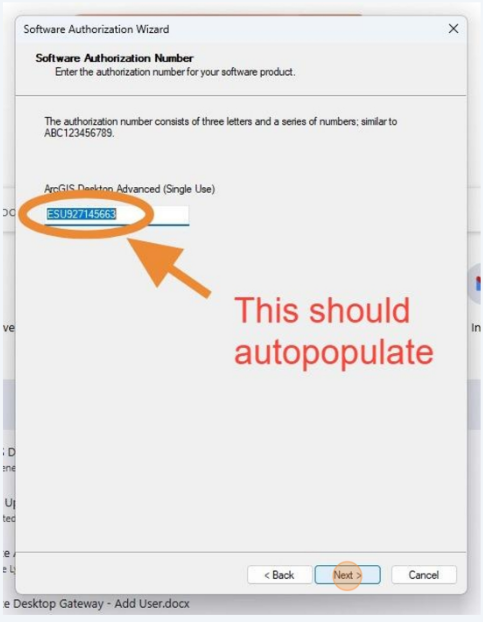
15 Verify the license number is "ESU927145663" then click "Next"
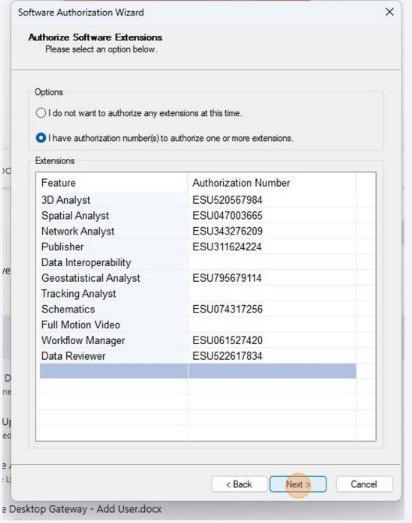
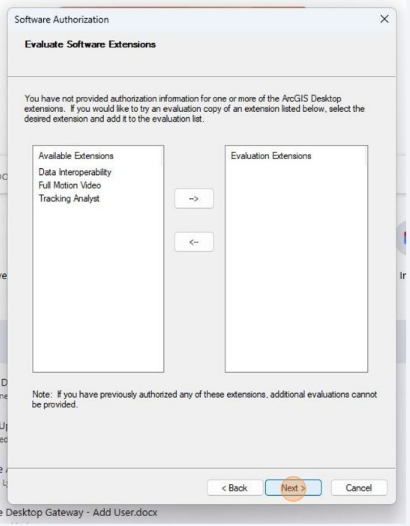
16 Leave the populated extensions and click "Next"
9
17 Click "Next"
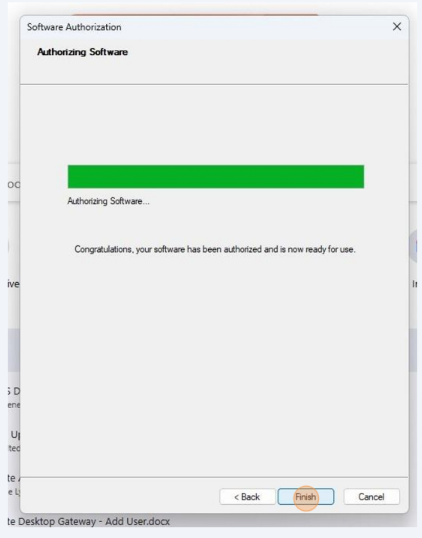
18 If authorization is successful you should receive the "Congratulations" message. Click "Finish"
10
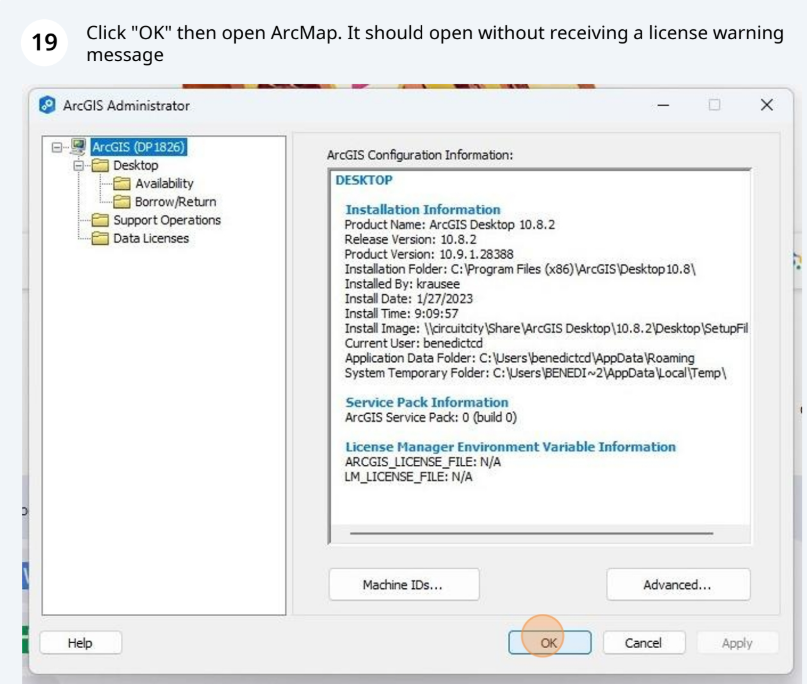
19 Click "OK" then open ArcMap. It should open without receiving a license warning message
11
Was this article helpful?
That’s Great!
Thank you for your feedback
Sorry! We couldn't be helpful
Thank you for your feedback
Feedback sent
We appreciate your effort and will try to fix the article