
MIS Department Policy & Procedure
Application Info
05/06/2016 KK, Software package received from Vince
09/19/2016 KK Aurora system now live.
01/15/2021 KK Received new full install ISO for installing system and client
01/15/2021 KK Added new gateway at the Splash Pad on Auburn for control of three locks in maintenance and restroom building.
06/18/2021 EPK Updating document to reflect the changes made to move from server Klinger to server Keys
Keyscan Aurora is installed on Keys
Install client from
G:\Install\mistools\Keyscan Aurora (may have to copy ISO to the user’s workstation)
See below
Aurora Standard License # AUR150-09050-77465-01762-96220
2 Client License
The server component is installed on Keys.
Server Installation
To install the server applications, mount the ISO file named Aurora_1_0_21_0.ISO from G:\Install\mistools\Keyscan Aurora (may have to copy ISO to the server) and run the “AuroraInstallation” executable
You will need to install four components:
“Database Installation” - no real issues - When installing, note that the default username/password combo is u:Keyscan/p:KEYSCAN. You will need to enter this if you are restoring a backup database from another server onto a brand new server.
“Client Installation” (see below) - no real issues
“Standard Communication Installation”- no real issues
“E-Plex Communication Installation” - At first, this install wasn’t working. It was giving an error code of 1001. This was because .NET 4.8 wasn't installed. If you get that error code, make sure to install .NET and then rerun.
Client Installation
To install the client on a PC mount the ISO file named Aurora_1_0_21_0.ISO from G:\Install\mistools\Keyscan Aurora (may have to copy ISO to the user’s workstation)
At the bottom right corner of the screen check the Database Server Location and E-Plex Communication Service Location.
Both should say keys. If they don't, click in the white box and type keys then hit the "Update Locations" button below the white box.
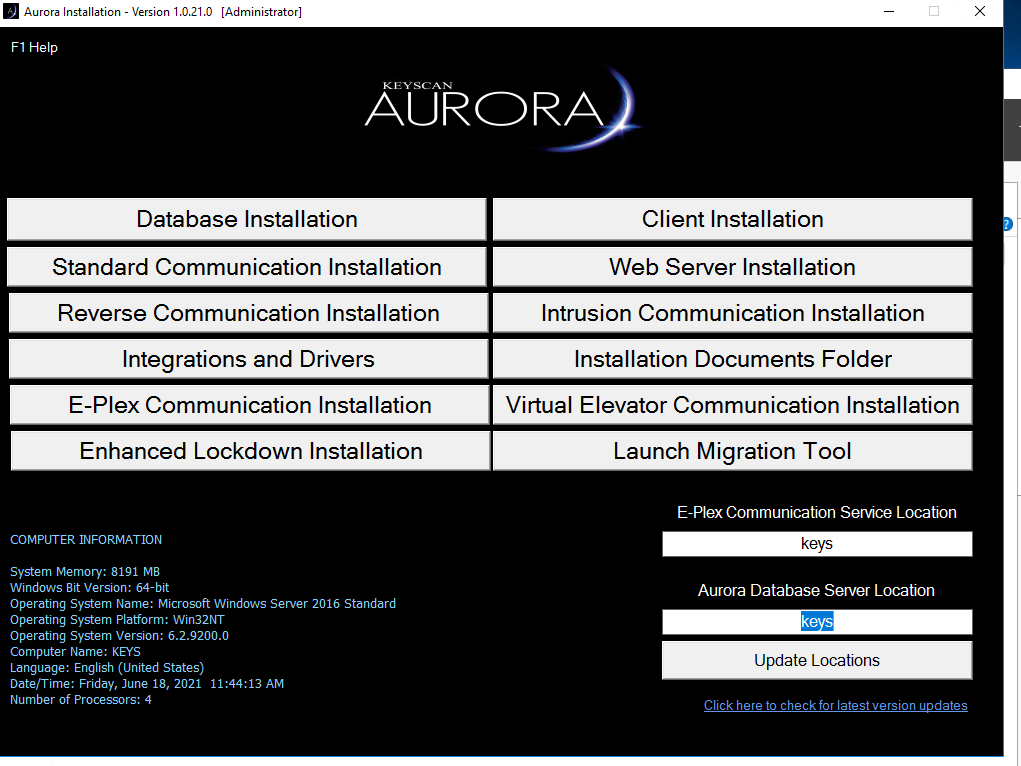
Then click the "Client Installation" button to install the client.
After running the main client install you have to run an update installer if there is an update folder dated later than the current January 2021 full install ISO to get to the current version.
Look in the Update folder for Aurora Update Process.exe
Run it and click the license agree checkbox and run through the install. It will be quick.
Then you are done.
Aurora Web Client
Note: there is an Aurora Web Client module installed on Klinger. *THIS IS NO LONGER IN USE* Vince does not remember purchasing it or asking MIS to install it. It is installed and accessible at
It is covered by the same two client Aurora license as the installed client. It has most of the functionality of the installed client but I haven’t been able to get Vince or Steve S to use it so they continue to use the installed client.
Was this article helpful?
That’s Great!
Thank you for your feedback
Sorry! We couldn't be helpful
Thank you for your feedback
Feedback sent
We appreciate your effort and will try to fix the article