
MIS Department Policy & Procedure
Introduction
Keyscan Aurora has a certificate that expires once every two years. It must be renewed at that time or things like E-Plex functions at the Splashpad will no longer work.
Procedure
Open CertLM.msc through the “Run” dialog on the server KEYS.
Navigate to the Personal Certificate store and check the expiration date for the dormakaba .Net Root CA:
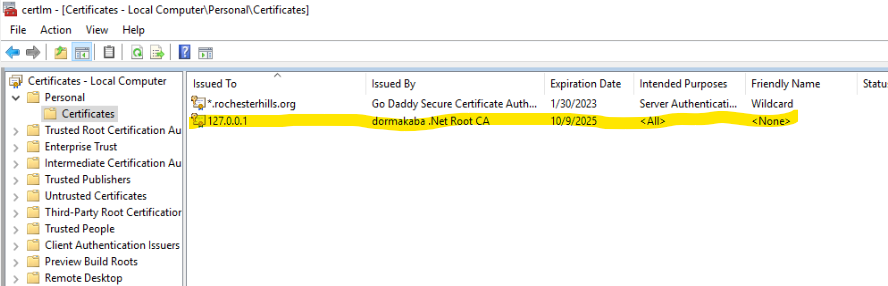
If it has expired, run Keyscan Aurora as Administrator on the server KEYS.
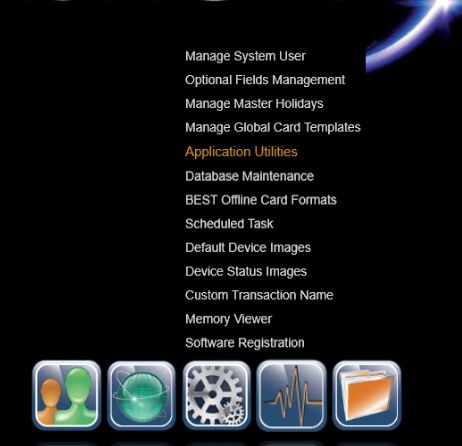
Go to Settings ? Application Utilities:
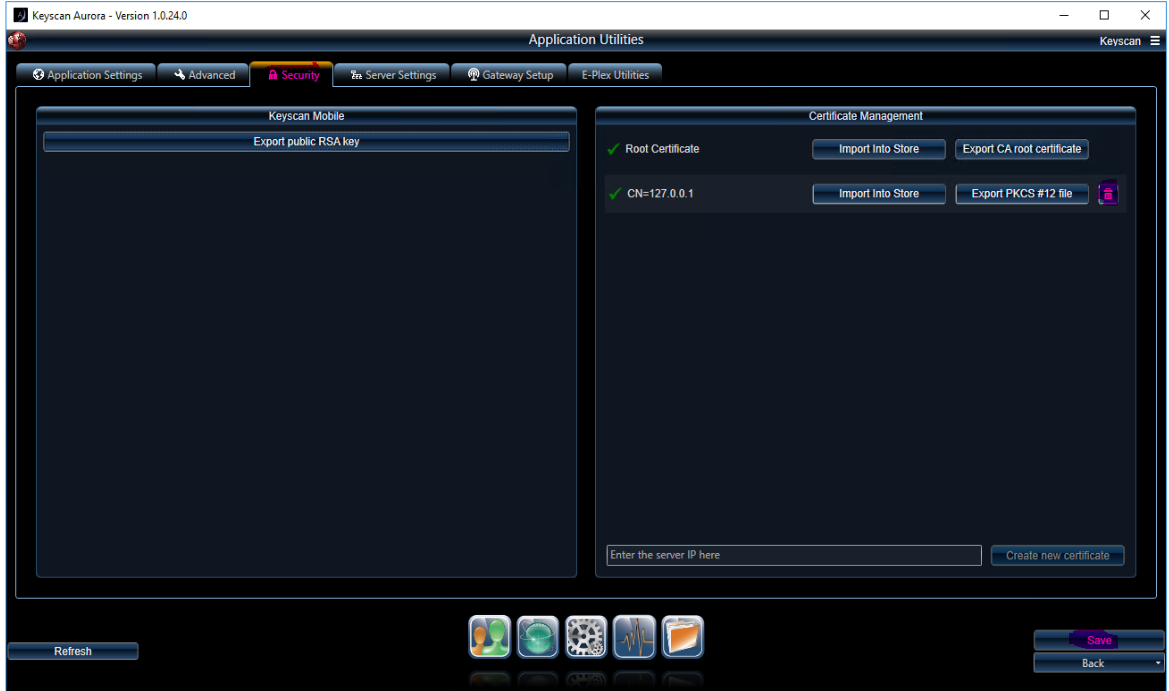
Navigate to the Security tab, click the trashcan button next to the 127.0.0.1 certificate, and then click “Save”:
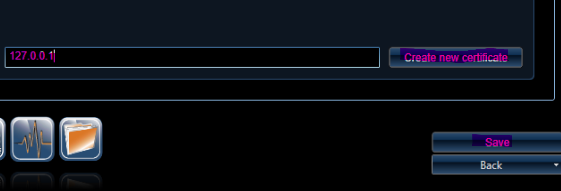
Now, type in 127.0.0.1 and then click “Create new certificate”. You will need to provide an output file and a certificate password:
Now, click the “Export PKCS #12 fle”. Make note of where you save the certificate.

Go back to the certificate manager, right-click Certificates (under “Personal”) and click “All Tasks”, then “Import”:
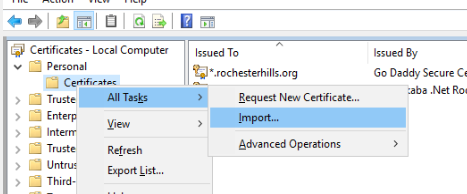
Navigate to the place where you saved the certificate that you exported from Aurora. Double-click the certificate and input the password when prompted.
After this is complete, restart both the “EPLEX Server” service and the “dormakaba HMS” service from the Windows service manager. The operation should now be complete.
Test the EPLEX gateway again.
Was this article helpful?
That’s Great!
Thank you for your feedback
Sorry! We couldn't be helpful
Thank you for your feedback
Feedback sent
We appreciate your effort and will try to fix the article