Payroll Import - Copy/Paste Method
JDE 9.2
Before You Begin - Match your Grid to your Spreadsheet
To import your payroll, you will need the order of your grid in JDE to match the order of the columns in your Import spreadsheet. Below is how to customize your grid to match. The columns you use may be different than mine, just make sure your spreadsheet matches your grid.
In JDE, navigate to Payroll by Individual
Click the Add button (green plus sign)
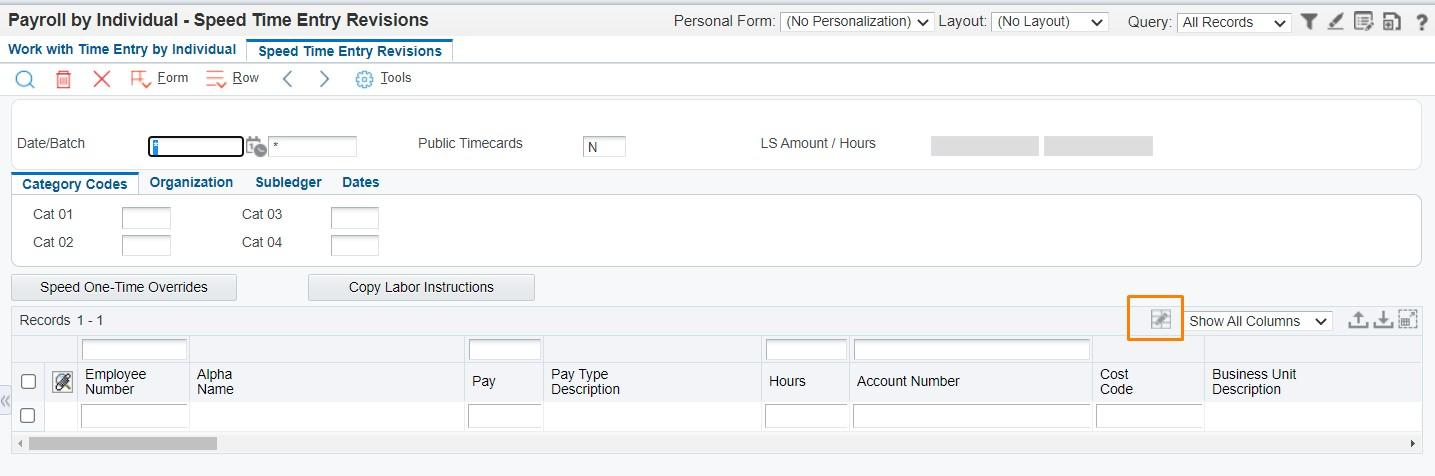
Click the Personalize Grid button (below)
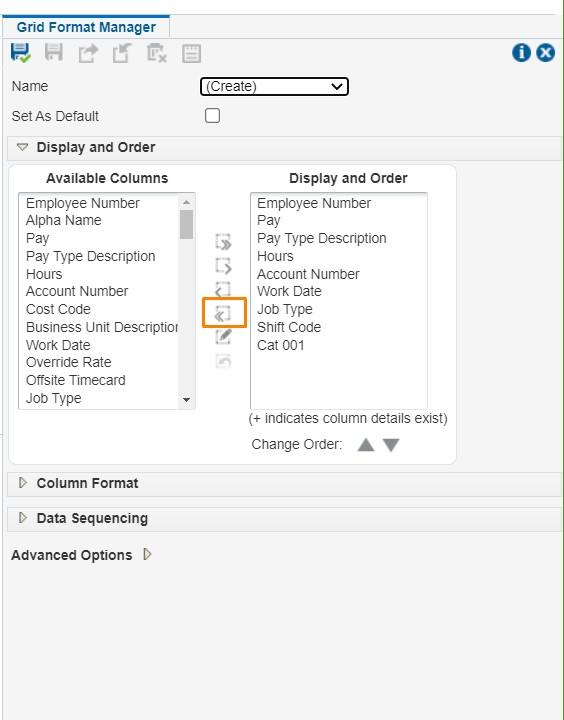
Clear the default items from the Display and Order field by clicking the Remove All button (below)
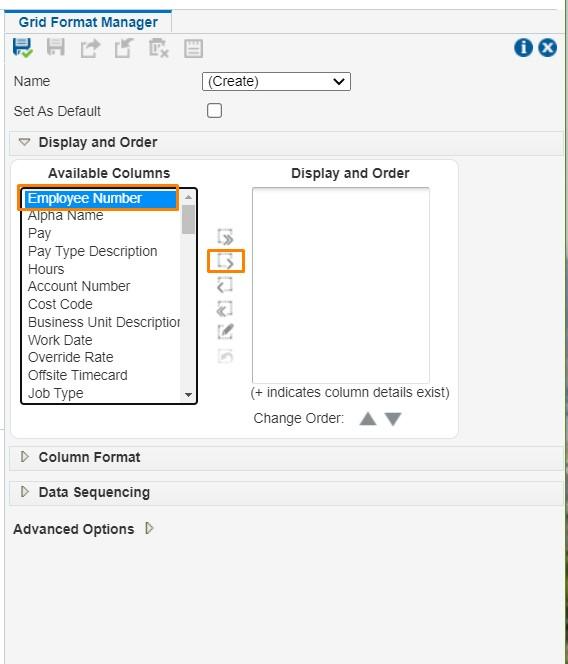
Click the name in the Available Columns field that matches your first column in your Spreadsheet. Mine starts with Employee Number, so that is the first Column I want to add. Once you have it selected, click the Add button (below). Move on to the next column in your list and repeat until you have all the columns you need.
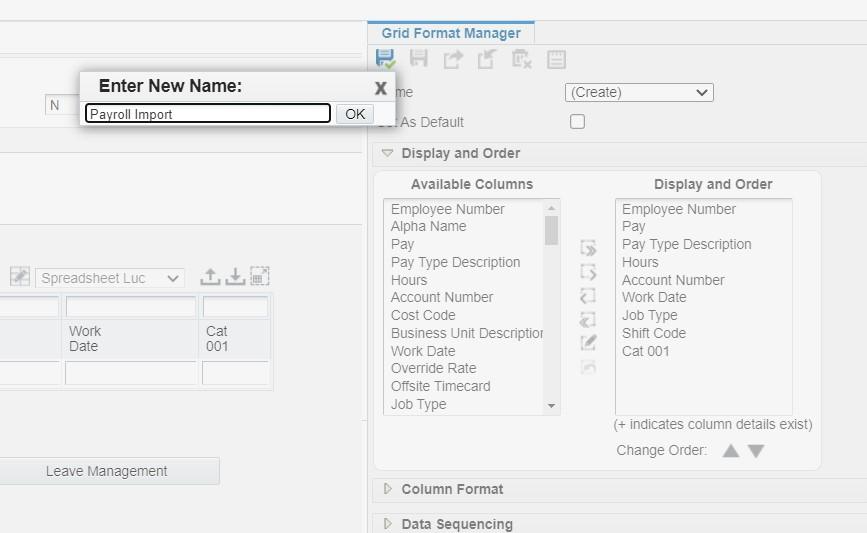
When you are finished, click the Save button (blue floppy disk) and enter a Name for your Grid. Mine is called Payroll Import but yours can be whatever you want it to be. Click Ok.
Now you should be ready to Copy and Paste your payroll data.
How to Import Your Data to JDE Using Copy/Paste
To enter payroll using the Copy/Paste method, you will need to have your payroll data entered in either a Google Sheet or an Excel spreadsheet.
Open your Google or Excel spreadsheet.
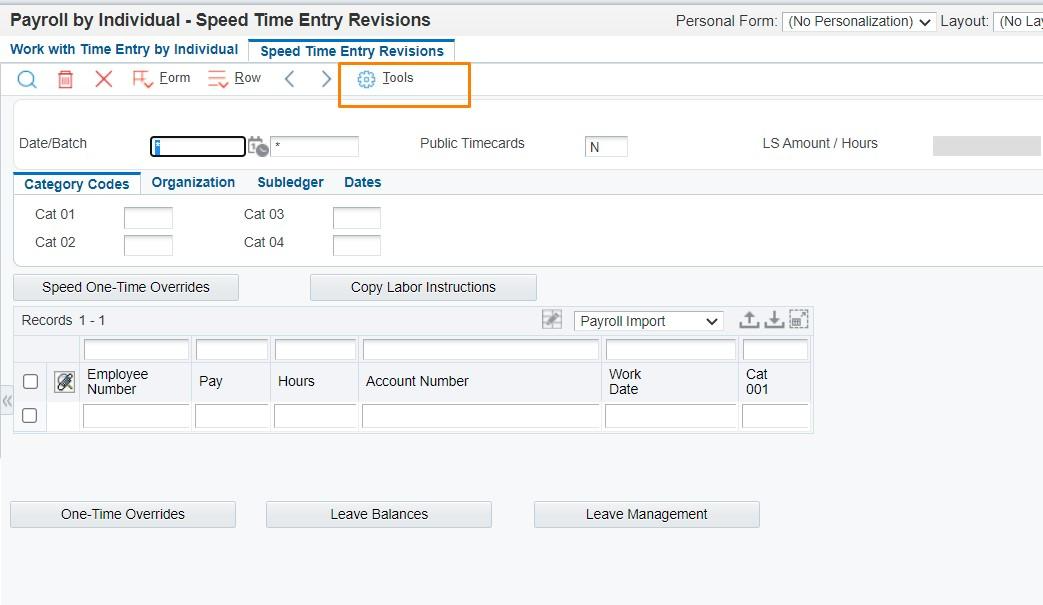
Log into JDE and navigate to Payroll by Individual. Make sure you are using your import Grid that matches your Spreadsheet. Mine is called Payroll Import and yours will be whatever you named yours when you made it. Instructions for this are above.
Click the Tools button (below).
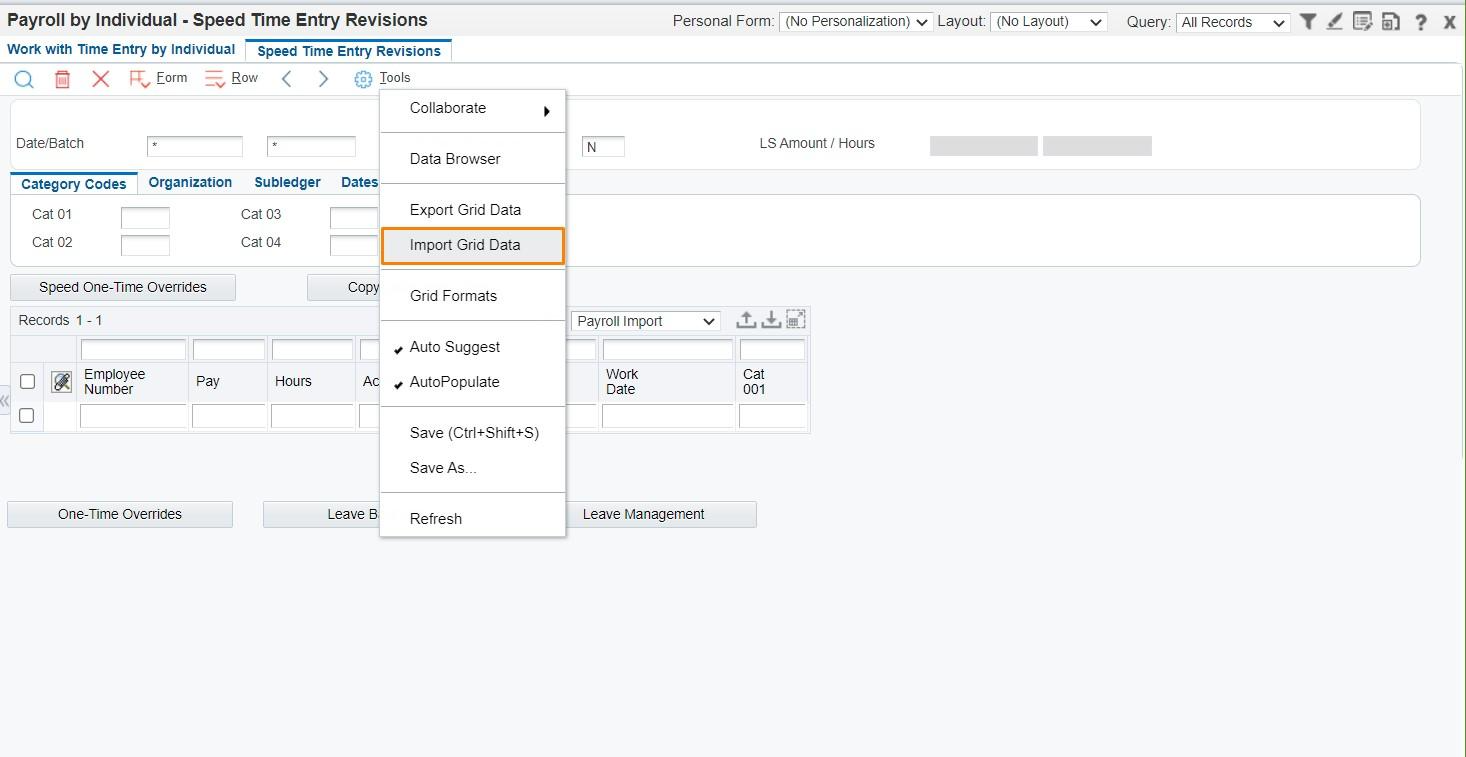
Select Import Grid Data
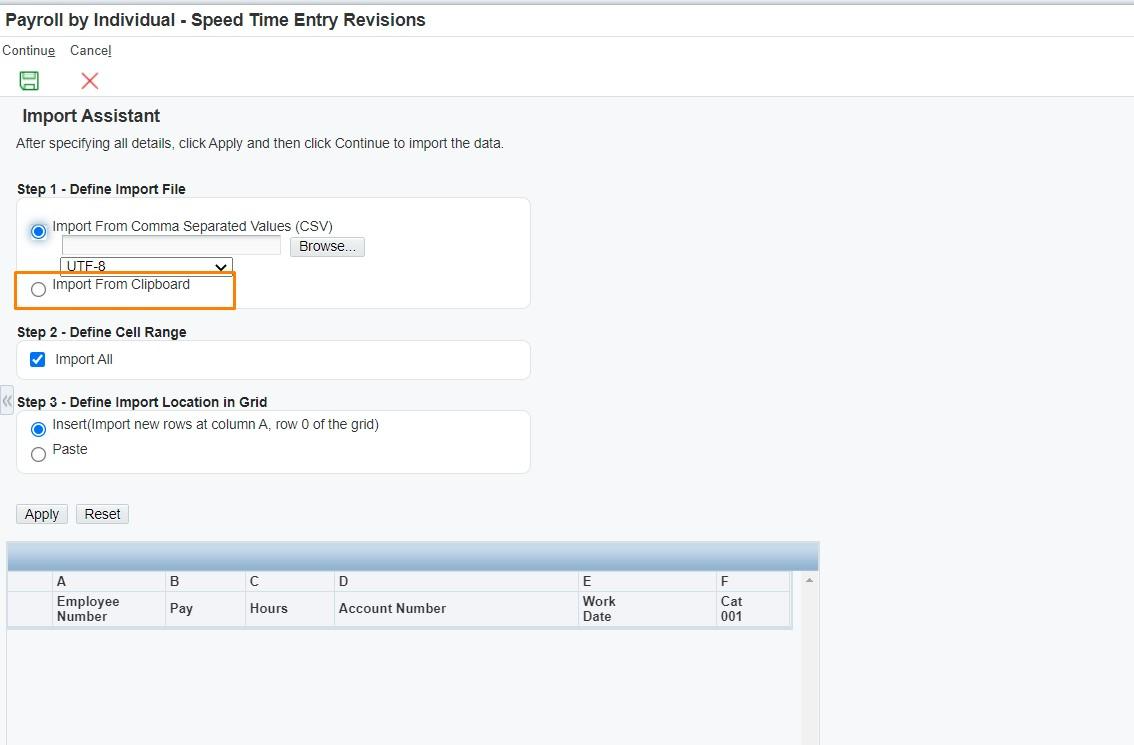
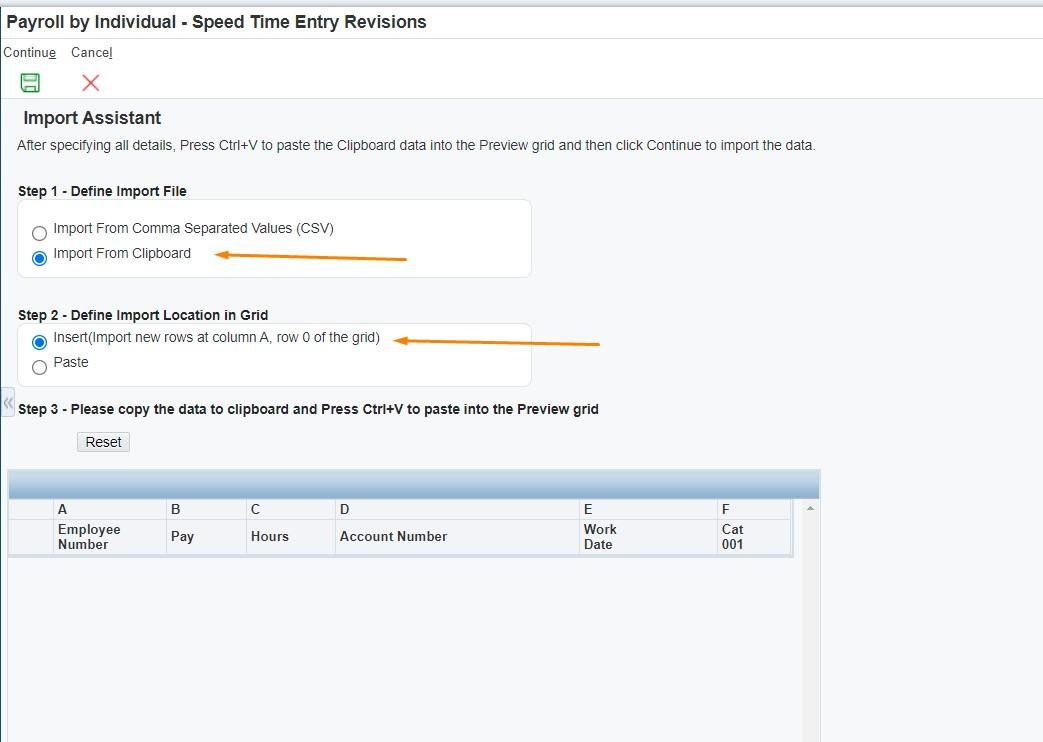
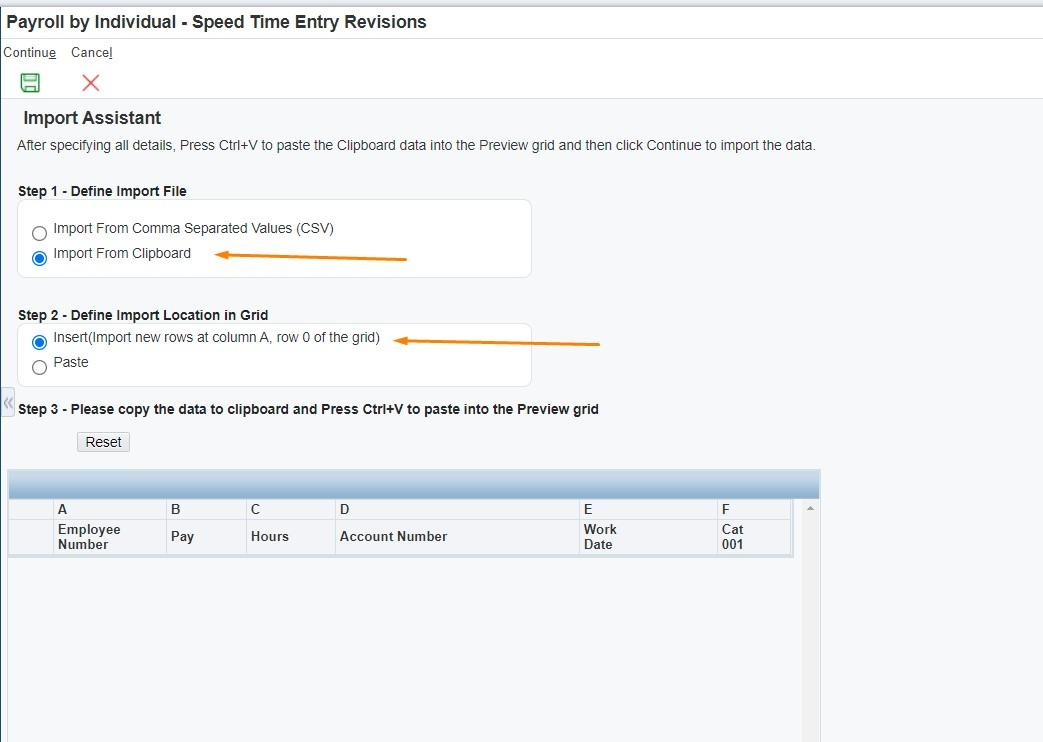
Select Import from Clipboard Your selections should be the same as this ↓
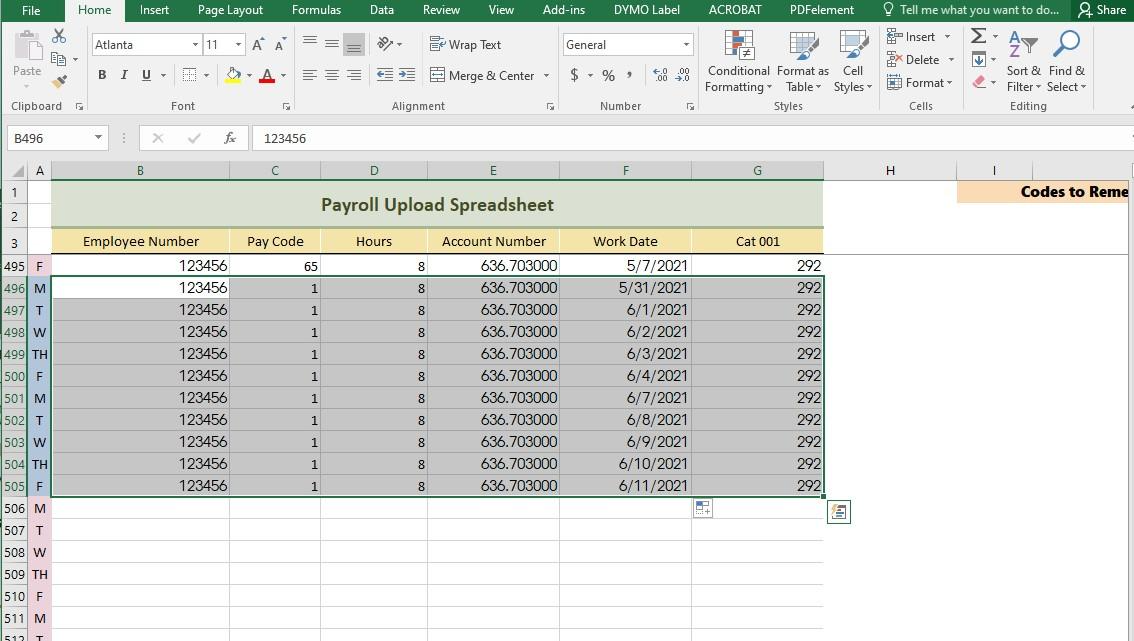
Go to your Spreadsheet that has the payroll data you entered. Highlight just the data you want to enter into JDE (don’t include the headings) and copy it using the keyboard shortcut (press Ctrl and the letter C at the same time). You cannot copy it before this step or your data will not paste. My example is below, yours may look different.
Go back to JDE and click in the grey space below the column headings. (below)
Paste using the keyboard shortcut (press Ctrl and the letter V at the same time). It will look something like this. (below)
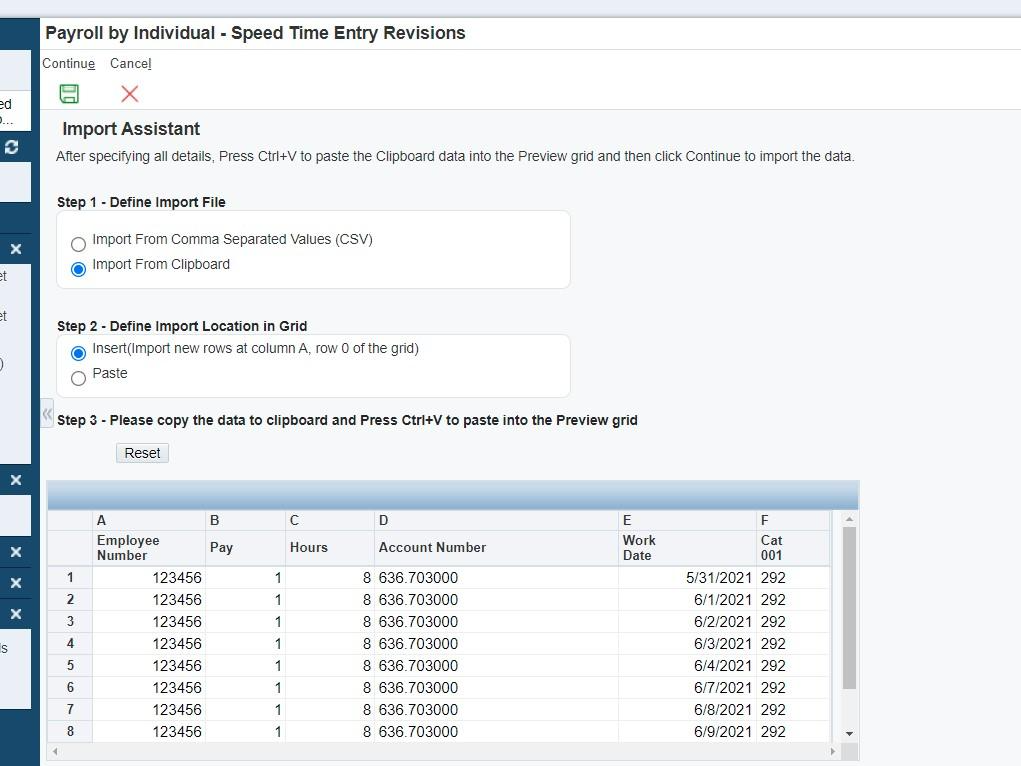
Click the Continue button (green floppy disk).
Review your time on the next screen.
Click Okay (green check mark) when you are completely done and ready to exit.
Was this article helpful?
That’s Great!
Thank you for your feedback
Sorry! We couldn't be helpful
Thank you for your feedback
Feedback sent
We appreciate your effort and will try to fix the article