
MIS Department Policy & Procedure
City Hall Geovision NVR
New Geovision NVR for City Hall Security Cameras installed by Vince in 2017. Used with GV Edge Recording Manager software.
Firewall Information
NVR server is located at 172.20.9.20
Virtual IP: 96.27.111.200
Open Ports:
81
3388
4550
5550
5552
5611
6550
56000 (Stream Port)
Policy #30064 on firewall
Web based access to GeoVision Camera System - This is the preferred method.
Access the camera system through the following URL
http://172.20.9.20:81/index.htm
You will need a user name and password from Vince. (See Dashlane)
Use only the following menu options:
HTTP Live Streaming
Remote Playback
Alternative access - This method does not work as well as the web based access above.
Remote access to the NVR can also be accomplished using a software install called GV Edge Recording Manager.
The installer is located here: G:\Install\mistools\GeoVisionCityHallCameras
Once installed, cancel out of the search wizard, it will not find the system.
On the toolbar click the big green plus button and select
Add VMS/DVR/NVR
On the add Host screen give it a Host Name of City Hall
The address is 172.20.9.20
ID/Password in Dashlane - limited access
Leave the other port settings the same.
Then on the bottom click Update Information.
If it updates it to 19 cameras then it successfully connected.
Click OK to save it. Then click the Save button on the toolbar.
Select a layout from the toolbar.
Then expand the City Hall/Camera List tree.
Drag cameras over to the camera view boxes.
If you click on one of the camera views it will zoom it to fill the screen. You can right-click and select Geo Fisheye to get a more normal view. It will break it into four dewarped views.
Each view can be seen as a separate camera by dragging your mouse in the window. This works better for ceiling mounted cameras that are looking down. Wall mounted cameras are a little weird.
Playback of past video
Right-click the camera window and select Remote Playback to see a list of recorded events. Select the day at the top and the time in the bottom box.
To save video footage do the following:
Stop video playback (can't export if playing)
Right-Click Remote Playback video screen and select Tools/Save as AVI
Click on the Setting tab and at the bottom change the Codec Selection to WMV9
Click OK
It will display a screen that says the status is Merging. It will take a few minutes. A red bar under Status will indicate progress.
When it says Complete it is ready for download. Click the X in the upper right corner of the Merge box to close it.
To download, Right-Click again in the Remote Playback window and select Tools/Download
Select a folder to save the video to and click OK.
Look in the folder you saved the video to and you will see a folder with the date in it. Open that folder.
Navigate down the subfolders until you see AVI files.
Right-click on an AVI file and select Open With/Windows Media Player
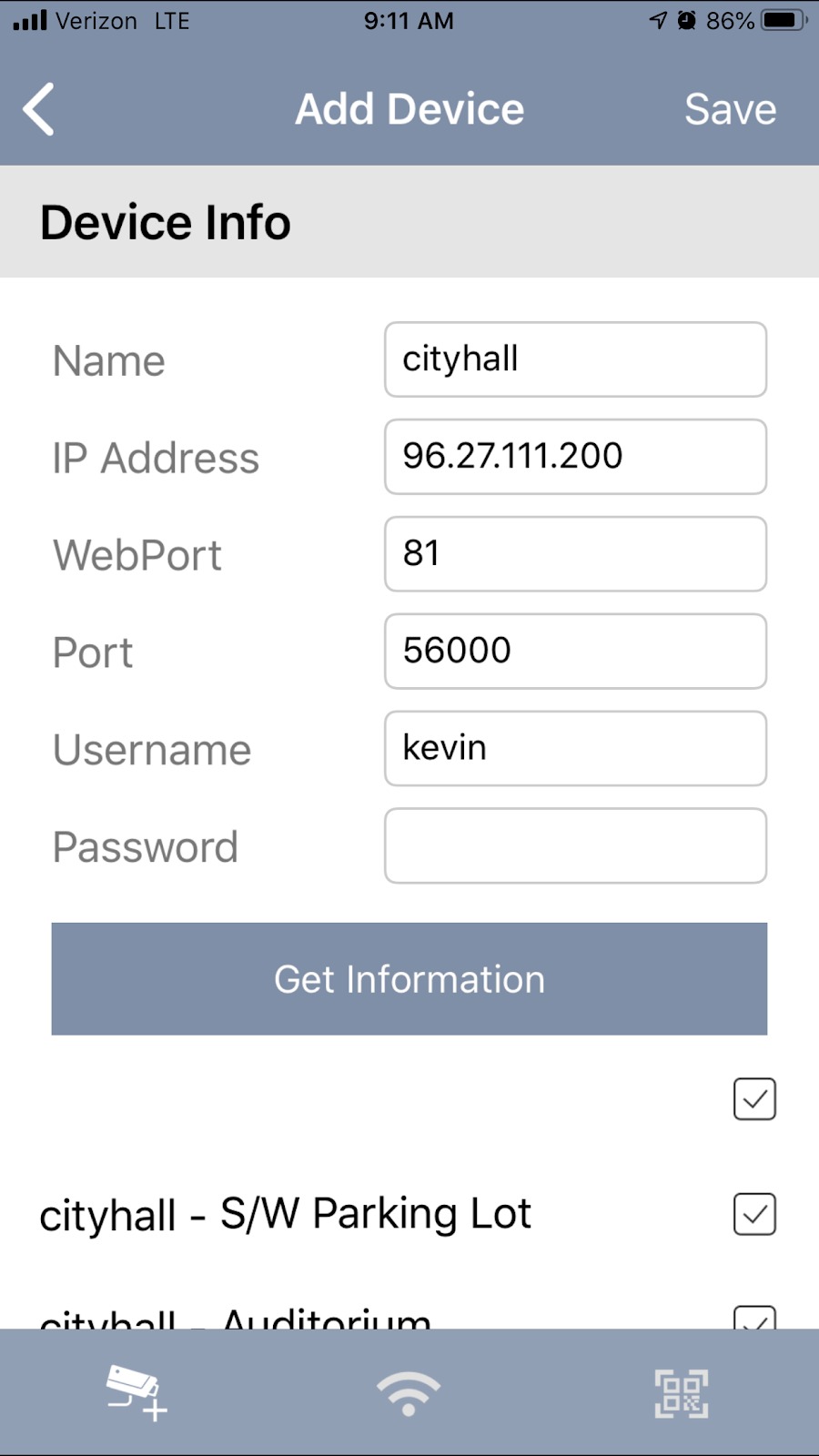
iPhone App Access
Install the app called GV-Eye
Add a system by clicking the plus in the upper right corner.
Configure as follows:
Name=Cityhall
IP Address=96.27.111.200
WebPort=81
Port=56000
Username=Get from Vince
Password=Get from Vince
After entering the info, click Get Information to connect and retrieve the camera list.
Once the system is added click on Live in the upper left corner.
Click the Plus in each of the boxes to add cameras to the view.
Swipe right or left for additional pages of cameras.
Was this article helpful?
That’s Great!
Thank you for your feedback
Sorry! We couldn't be helpful
Thank you for your feedback
Feedback sent
We appreciate your effort and will try to fix the article