
MIS Department Policy & Procedure
Intro
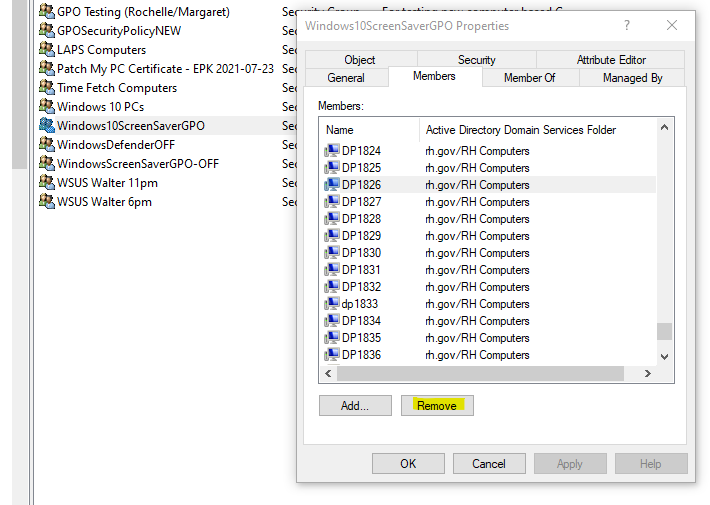
We currently have a GPO that locks a user’s screen after 15 minutes of inactivity. The name of the GPO is “Screen Saver Lock Policy-Computer Policy” and only computers in the Security Group “Windows10ScreenSaverGPO” get the GPO applied
Procedure
In some cases, computers need to keep their screens on, even when inactive. In this case, they must be removed from the security group.
Log into Active Directory Users and Computers and find the security group. Remove the computer from the group and click “OK”:
Log into the PC and run “gpupdate /force” from the command prompt. Reboot the machine.
Once the PC is rebooted, the local group policy needs to be reset. As an admin, run gpedit.
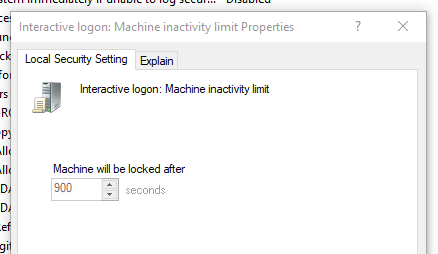
Navigate to Computer Configuration / Policies / Windows Settings / Security Settings / Local Policies / Security Options and change the setting “Interactive Logon: Machine Inactivity Limit” from 900 to 0 (this setting will no longer be greyed out after the AD removal/reboot).
Apply the setting and close gpedit. The machine should no longer lock the screen after 15 minutes.
Was this article helpful?
That’s Great!
Thank you for your feedback
Sorry! We couldn't be helpful
Thank you for your feedback
Feedback sent
We appreciate your effort and will try to fix the article