
MIS Department Policy & Procedure
Setup for both "Parent" and "Child" laptops
Precincts requiring paired laptops per Clerk's Dept as of 01/18/2018:
Precinct #6 - Avon Clubhouse
Precinct #9 - Rochester High School
Precinct #14 - West Middle School
Precinct #16 - Brooklands School
Precinct #17 - Meadow Brook Elementary School
Precinct #25 - Adams High School
Precinct #26 - VanHoosen Middle School
Precinct #30 - St. Mary's of the Hills
Network & Sharing Center
Connect the two laptops using a regular network cable.
Change adapter settings
Wifi and Bluetooth adapters are both disabled
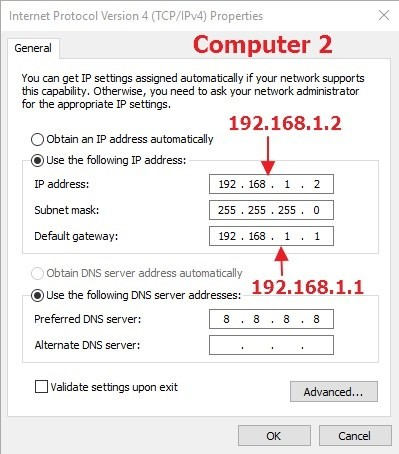
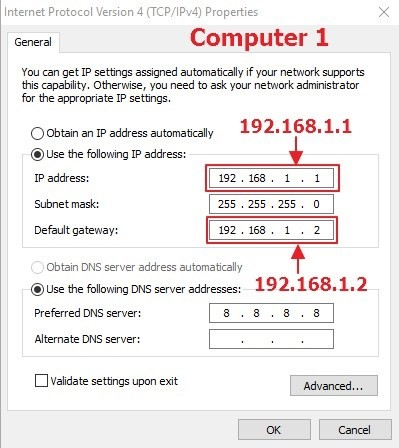
Ethernet Adapter: Set the properties in the IPv4 as follows:
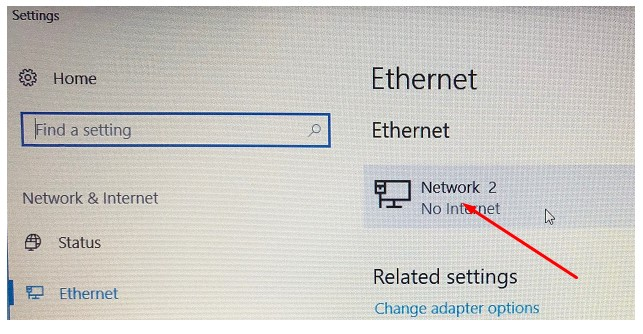
Choose Network & Internet Settings
Choose Ethernet (at the left)
Should show Network 2 - click it
Be sure the Network is set to Private.
Then open File Explorer on each computer and choose Network. Both computers should show up.
May require a reboot.
(Time must be synced between paired laptops. Run the TimeSync.bat* on each paired desktop when laptops are scanned by antivirus before each election.)
* TimeSync.bat net time \\[computer name] /set/y
Clerk's Department is responsible going forward from here:
The pollbook is installed on the "Parent" laptop and the "Child" laptop browses to the pollbook on the Parent laptop through the EPB software.
Was this article helpful?
That’s Great!
Thank you for your feedback
Sorry! We couldn't be helpful
Thank you for your feedback
Feedback sent
We appreciate your effort and will try to fix the article