Schedule Bulletin in GovDelivery

Use this procedure to send notifications through GovDelivery. It is always best to find an old one and copy it so you don't have to worry about the settings.
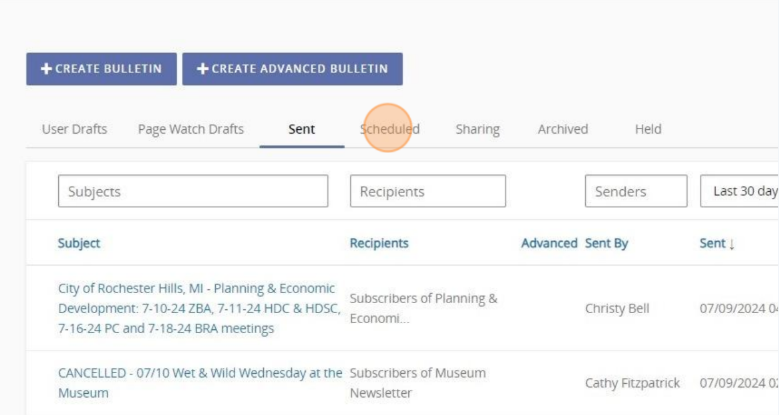
1 Find an old one in the Sent section of the Bulletins area.
1
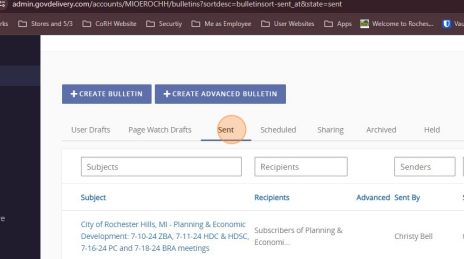
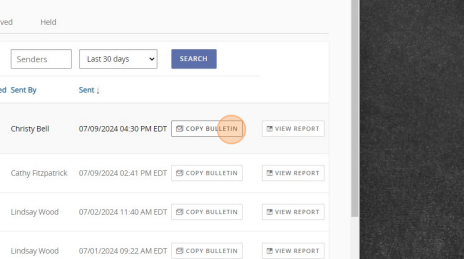
2 When you find one that was for Planning, choose Copy Bulletin.
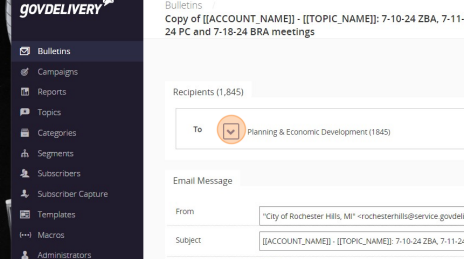
3Review the Recipients by using the dropdown arrow to make sure you are sending it to the right people.
2
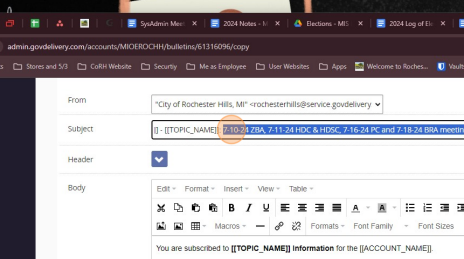
4 Change the Subject line here. Keep the text in the brackets as it is (very important).
3
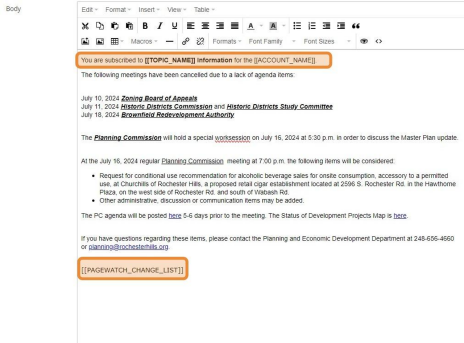
5This is where you put the body of your message. Everything in the orange boxes in this screenshot MUST be kept the same for legal reasons.
4
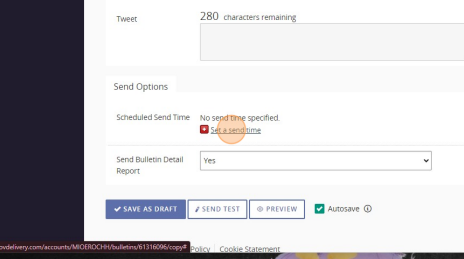
6 Click here to schedule your send time.
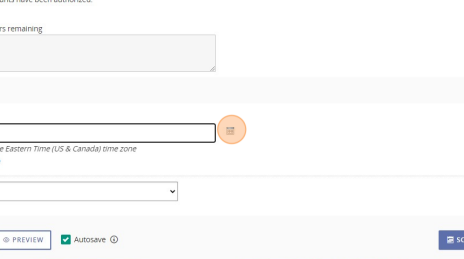
7 Click the calendar icon.
5
8 Choose a date.
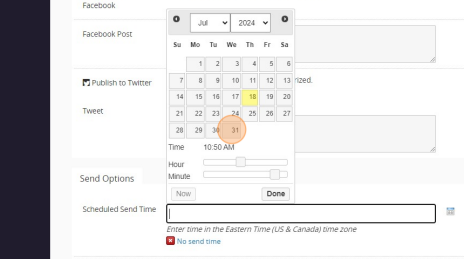
9 Use the slide bars to choose a time.
6
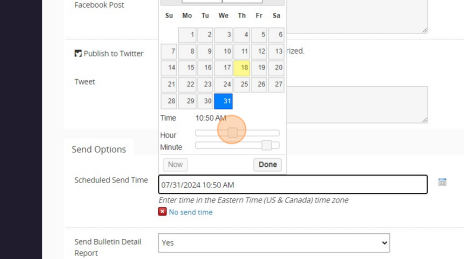
10 Click done.
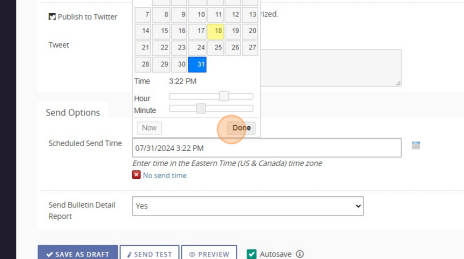
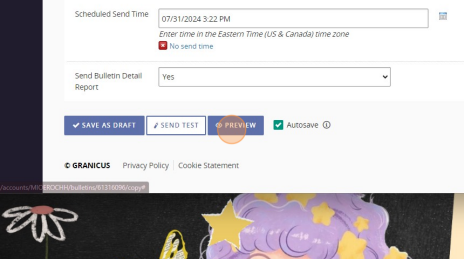
11 You can preview the message by clicking Preview (highly recommend).7
12 Toggle between Email, Plain Text, and Text Message to see how they will all look.
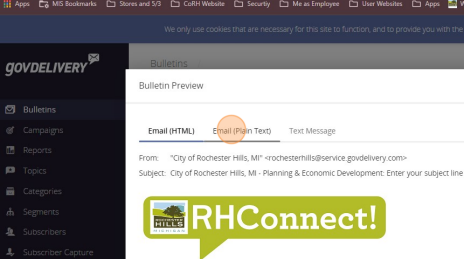
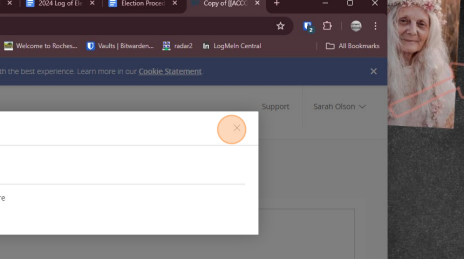
13 Close preview box when done.
8
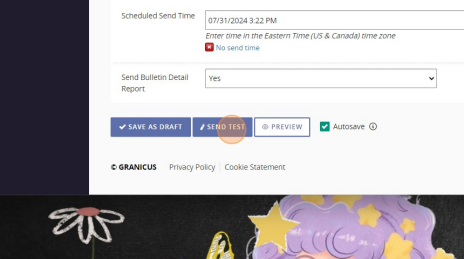
14 You can send a test email/text to yourself for more validation.
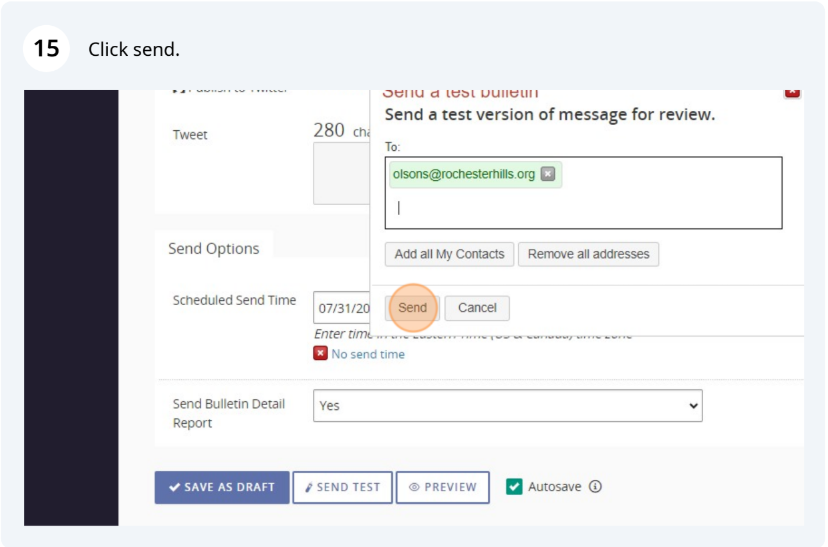
15 Click send.
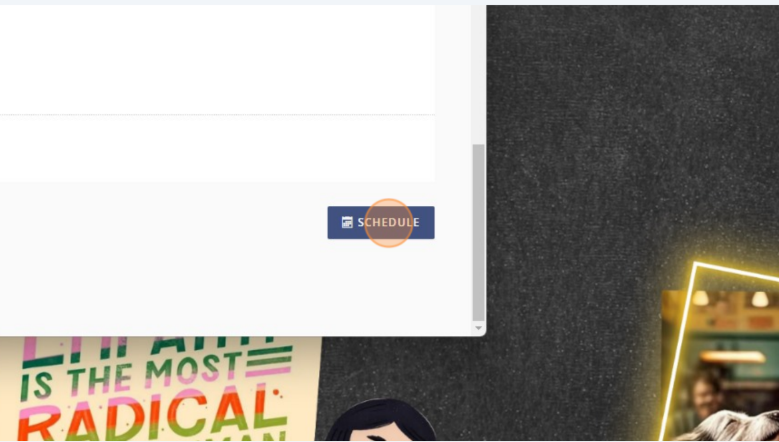
16 When you are happy with your bulletin, click Schedule.
17
When you have scheduled your message, you can see it in the Scheduled section of the Bulletin area. You can always edit them before they go out.
10
Was this article helpful?
That’s Great!
Thank you for your feedback
Sorry! We couldn't be helpful
Thank you for your feedback
Feedback sent
We appreciate your effort and will try to fix the article