
MIS Department Policy & Procedure
Introduction
This guide will show you how to add a second phone for a user in Duo.
Details
Open a support session with the user on their PC.
Have the user navigate to https://rochesterhills.login.duosecurity.com/central/ in a web browser.
The user will need to log in with their email address and Active Directory Password.
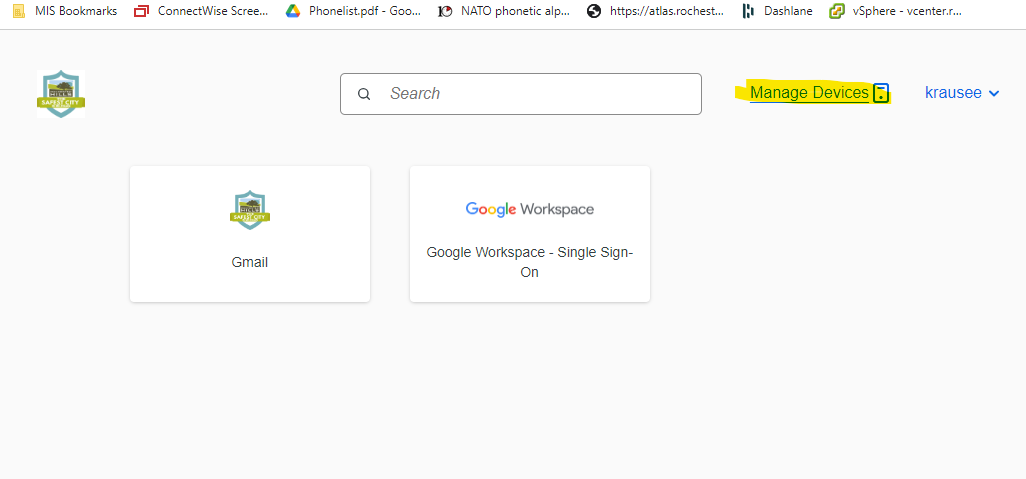
Once logged in, click “Manage Devices” in the upper-right.
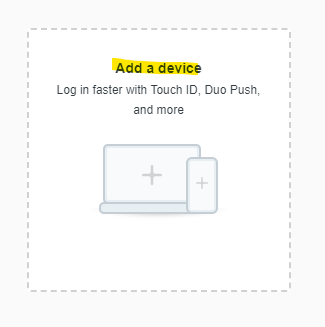
Click “Add a device”.
Run through the device prompts as you would when enrolling the user’s first device. Instructions are here.
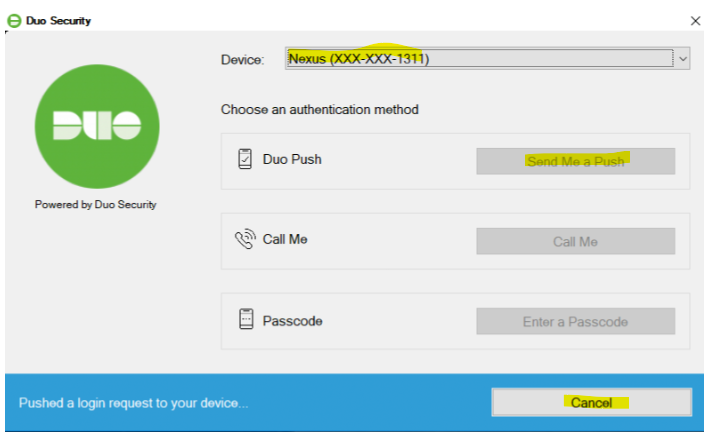
Once completed, the user will receive Duo prompts to their first device by default. In order to send a prompt to the second device, they should hit “Cancel” on the Windows prompt, then select their other device, then click “Send Me a Push”. It’s a good idea to run through this behavior with the user.
Was this article helpful?
That’s Great!
Thank you for your feedback
Sorry! We couldn't be helpful
Thank you for your feedback
Feedback sent
We appreciate your effort and will try to fix the article