
MIS Department Policy & Procedure
Introduction
This document will help you add a Yubikey in Duo for a new user. You could also replace a user’s Yubikey with these instructions in the case of a lost or stolen Yubikey.
Note: If you are reactivating an existing Yubikey, be sure to Delete it under Devices > Hardware Tokens
Procedure
First download and install the Yubikey manager from here.
Open the Yubikey manager in Windows and plug in the new Yubikey.
Click Applications, then OTP.
Under “Short Touch (Slot 1)”, click “Configure”
Select “Yubico OTP” and click “Next”
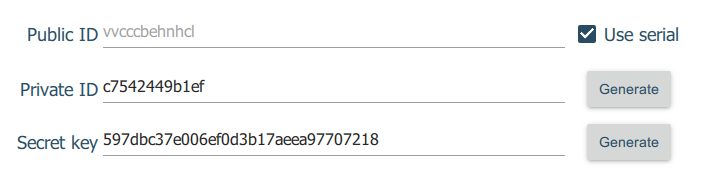
For Public ID, select “Use Serial”. Click “Generate” next to “Private ID” and “Secret Key”. Don’t click “Finish” yet. It should look like this:
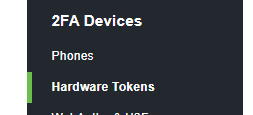
Log into the Duo admin console and select “Devices” on the left hand side, then select “Hardware tokens”
Select “Import Hardware Tokens”
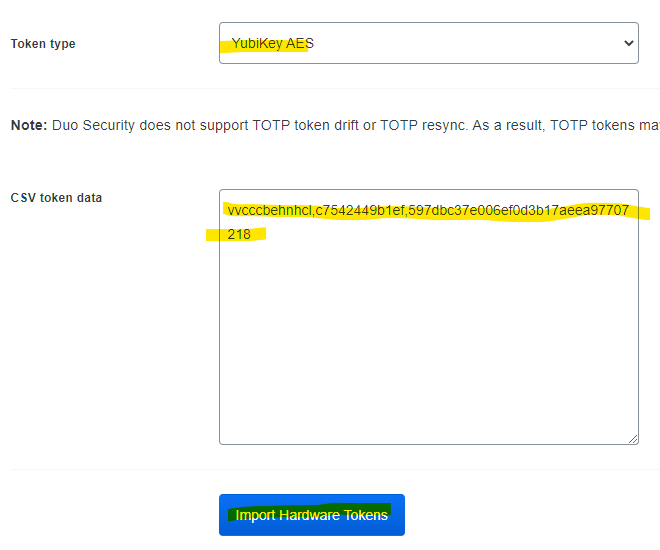
Then fill out the following information from the Yubikey Manager into Duo as shown below, using commas to separate each field. Make sure to select “Yubikey AES” as the Token type. Then, click “Import Hardware Tokens”:
Now, select the new Hardware token:

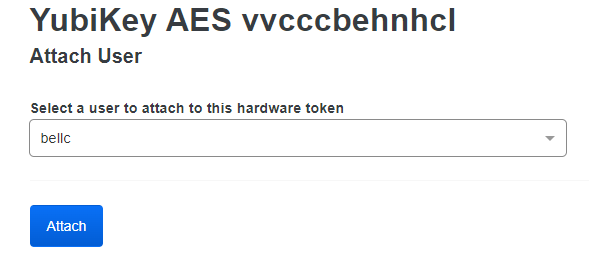
Select “Attach User”

Select the user that you’d like to attach and then click “Attach”.
The Duo setup is now complete. Click “Finish” in the Yubikey Manager to complete the Yubikey setup. It may ask if you’d like to overwrite the existing configuration. Feel free, as that configuration is the default factory setup.
The Yubikey can now be distributed to the user. Don’t forget to install the Duo software to the computer from PDQ Deploy if the computer has never had it installed. The name of the package is “Duo Install”.
Was this article helpful?
That’s Great!
Thank you for your feedback
Sorry! We couldn't be helpful
Thank you for your feedback
Feedback sent
We appreciate your effort and will try to fix the article