Getting Started with Bitwarden Updated 1/22/2025

1 Check your inbox for an email from Bitwarden
1
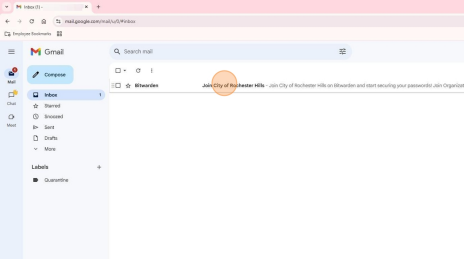
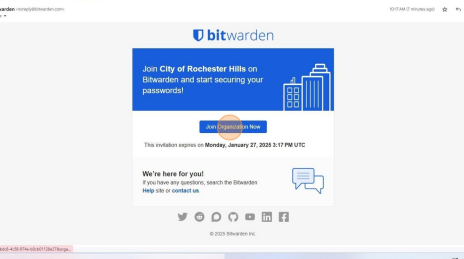
2 Click "Join Organization Now"
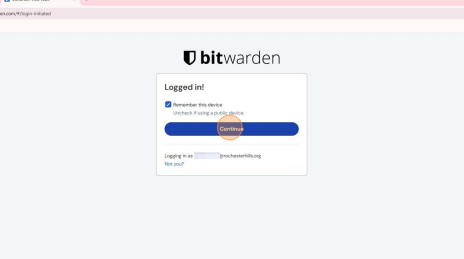
3 Click "Continue"
2
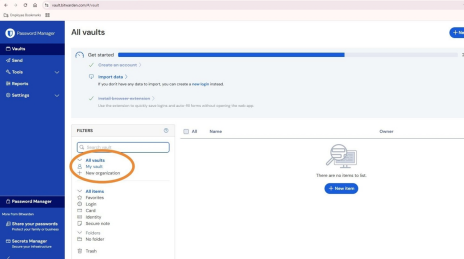
4 You initially will not see any information in your vaults
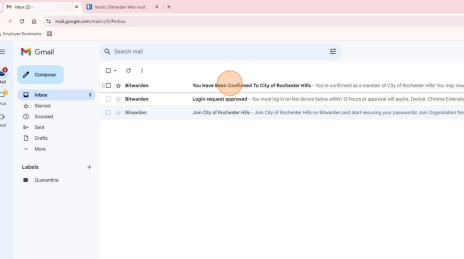
5Return to your Gmail account and open the "You Have Been Confirmed To City of Rochester Hills" email
3
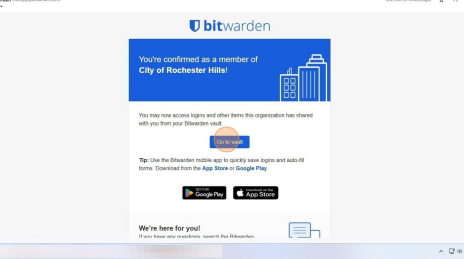
6 Click "Go to vault"
7 Click "Continue"
4
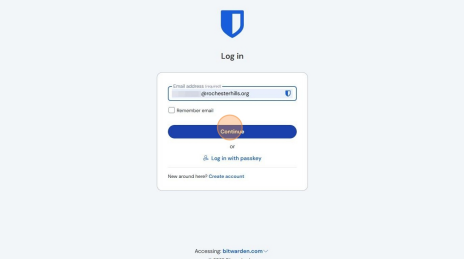
8 Enter your email address
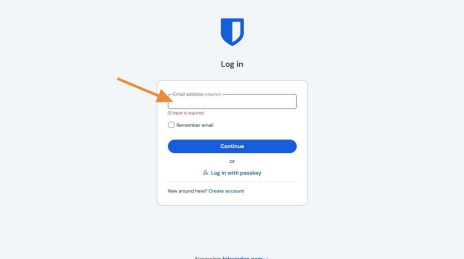
9 Click "Continue"
5
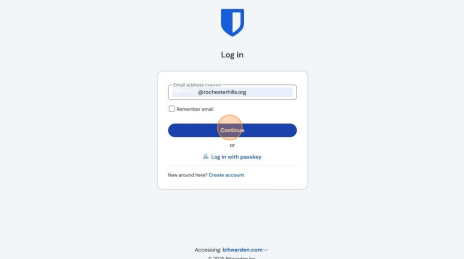
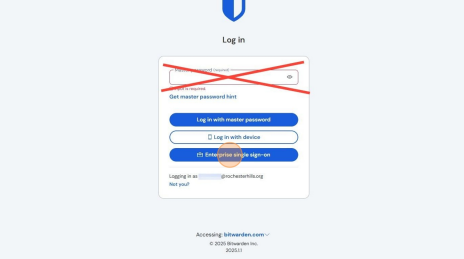
10 Click "Enterprise single sign-on". Access to Bitwarden is tied to your City network credentials, so you don't ever need to use a password!
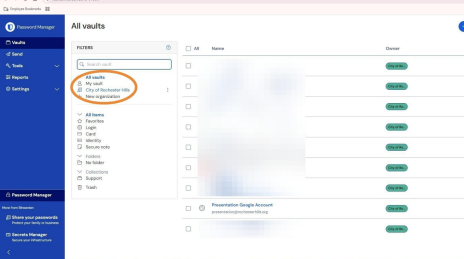
11 You should now see "City of Rochester Hills" in your vault list. You'll use the City vault for accessing your Department's saved logins, and save your own user credentials to "My vault"
6
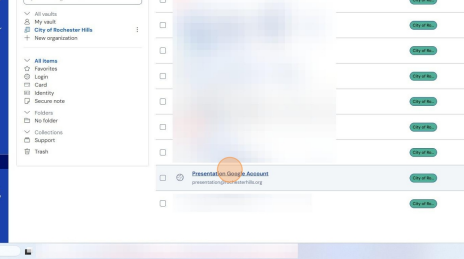
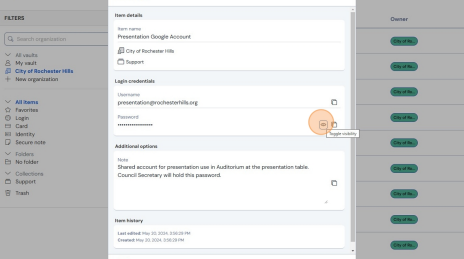
12 To view login information for a specific site, click the desired vault entry
13 Click the "Toggle visibility" icon to view a password, or you can copy the password by clicking the "Copy" icon to its right
7
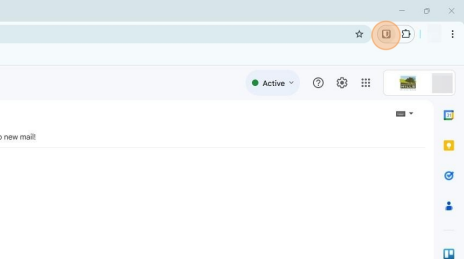
14 The Bitwarden browser extension enables you to easily access your vaults & passwords, enter saved login credentials, save new login credentials, and generate new passwords, without opening the full Bitwarden website. To enable the Bitwarden browser extension, click the extension icon as shown
15 Enter your email address
8
16 Click "Continue"
17 Click "Enterprise single sign-on. Remember, you never have to enter a password here
9
18 You can close the tab when you see the message below
19 Click the Bitwarden extension icon again
10
20 Click "Request admin approval"
11
21 You should see the message below. Admins are NOT notified of your approval request, so you will want to send an email to helpdesk@rochesterhills.org so we can approve your device request.
You will have to repeat this process once for each device you access Bitwarden on; it may make you obtain approval for both the extension and when you log into the site itself. You will also have to repeat the extension login process after each time you close your browser. Sorry, we don't like that either! But the process serves as one of multiple layers of defense designed to keep our information safe
12
22 After your device is approved, clicking the Bitwarden extension will provide access to items in your vaults, let you create or save new login information, and allow you to generate passwords
13
Was this article helpful?
That’s Great!
Thank you for your feedback
Sorry! We couldn't be helpful
Thank you for your feedback
Feedback sent
We appreciate your effort and will try to fix the article