
MIS Department Policy & Procedure
RecTrac
Rectrac is installed on DP1519, formerly Bert's PC and acts as the server for the application. It was airgapped off the network for security reasons as of 12/15/2023 because a recent Windows update was causing issues with the program launching properly AND because RecTrac itself is no longer supported.
Stand Alone Computer OFF NETWORK
The computer was removed from the network and Bert (and possibly other Park’s staff) can only log in using a local profile called rectrac (password in Bitwarden).
The computer is only to be used to run RecTrac reports, schedules, etc., that are then moved from DP1519 to a networked computer using a USB drive.
The computer has the RecTrac software and Adobe Reader
RecTrac Backup
Bert can still use the backup batch file to create a zip file backup of the data base. It is saved on the computer and then copies to the D:\ assuming the USB drive is inserted. If not, it can be moved manually to the USB drive after backup. It was also suggested that Bert save the zip file onto the I: drive manually from the USB drive to be on the safe side.
Installation of client software (NO LONGER VIABLE)
We are not maintaining this software. Parks is launching a new recreation management program within the first quarter of 2024.
You must turn off AV software on both the client and server while installing client.
In IE, access http://dp1519:8080
First install the OpenEdge10 client by clicking on the icon for it. If the provided link fails to install, you can install from G:\Install\Openapps\RecTrac\WebClient\setup.exe.
This installation process can take a long time and it may appear that nothing is happening. Just be patient.
Once installed, refresh the page and you should see the icon for installing the Rectrac 10.3 (LAN) client.
Font sizing in Windows must be set to the normal size or it will affect the program and it will crash.
Bert's login info for Rectrac
BHH
drollentui
Logging In:
If the new user receives the following message when trying to log into RecTrac:
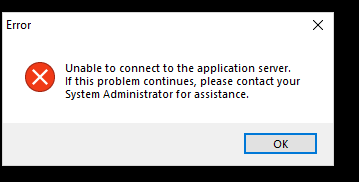
Log in using Admin User's LIVE Database Login (found in KeePass) and "End All Sessions."
Click "Func" and choose "Daily Processing" from the drop down.
Then click "System" and choose "RecTrac Session Review" from the drop down.
Enter Manager Override (which is Bert's login info from above)
(You can also use the Admin User's LIVE Database Login again, but it will also require the Master Password found in KeePass)
Then click "End All Sessions." This will end the sessions of anyone else using RecTrac, so you may want to warn them ahead of time.
User Can't Log In
If a user tries to log in and gets this error message, try the following:
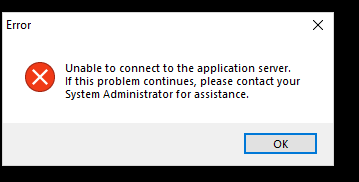
Typically this is a symptom of the admin service lock file still being present after an abnormal server reboot. To correct the issue, go to Windows Services and Stop the Admin Service for OpenEdge.
Next browse to :\vsi\oemgmt\config and delete the admsvr.lock file.
Restart the Admin Service for OpenEdge. Verify that you can access the OEManager (http://localhost:9090, if running 10.3 or http://localhost:9093, if running 3.1) and then try to connect to your RecTrac database.
Was this article helpful?
That’s Great!
Thank you for your feedback
Sorry! We couldn't be helpful
Thank you for your feedback
Feedback sent
We appreciate your effort and will try to fix the article