Restoring The “My Documents” Folder To The Default Location
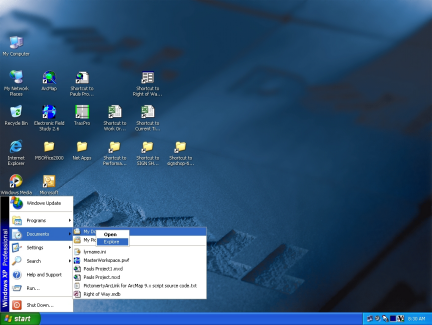
1) Click Start/Documents and right-click the “My Documents” menu item , selecting “Explore” to open the folder (use “Explore” rather than using “Open” or double-clicking since you’ll get a view that shows “Desktop” just above “My Documents”.
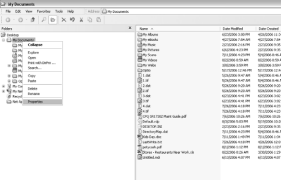
2) In the explorer view window right-click My Documents and select “Properties”:
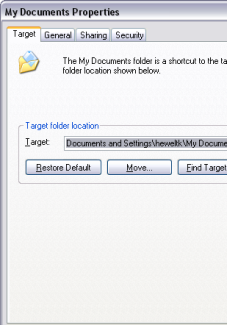
3) In the Properties window click on “Restore Default” and when it asks if you want to move everything from the other location to the restored location click “No” since it will move everything from the user’s I: drive.
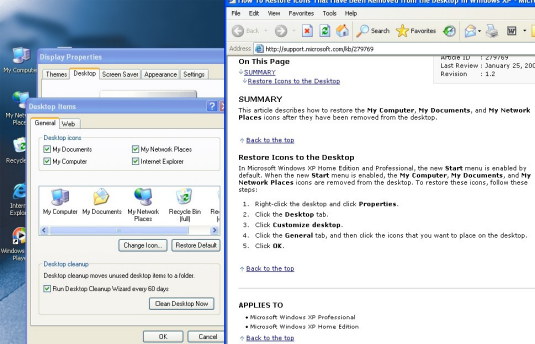
4) Next, to restore the icon on the Desktop:
Was this article helpful?
That’s Great!
Thank you for your feedback
Sorry! We couldn't be helpful
Thank you for your feedback
Feedback sent
We appreciate your effort and will try to fix the article