MIS Department Policy & Procedure

Document Name: | Setup ODBC Driver for accessing Databases ( ODBC Connection to Lucity Failed) | Document Type: | Procedure |
Written by: | Sandu | Date/Revision Date: | 06/20/2025 |
Setup ODBC Driver for accessing Databases ( ODBC Connection to Lucity Failed)
When facing “ ODBC—connection to ‘Lucity’ failed error when trying to access a database…
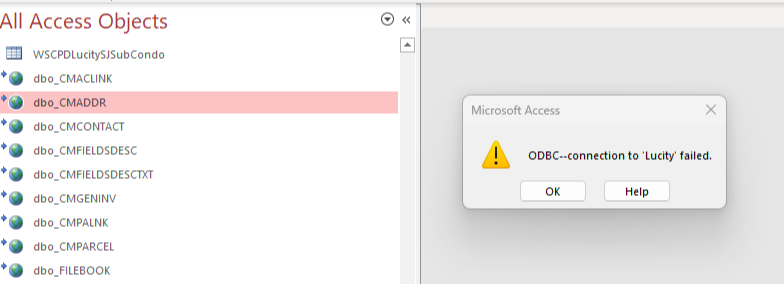
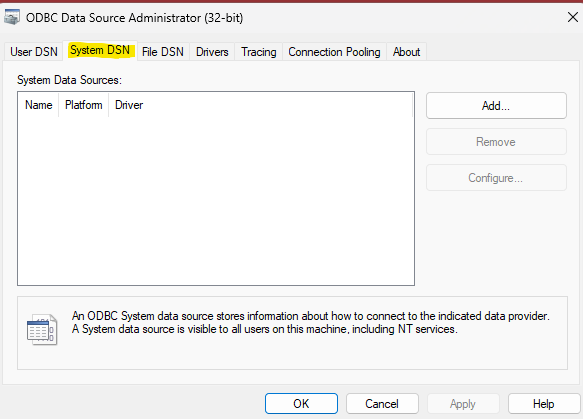
Check the ODBC Source administrator (in this case, since office is 32 bit, use the 32 bit version).

Upon opening the app, you will see the existing user data files.
Select the “System DSN” tab.

You will need to create an SQL Server Driver (choose Add)
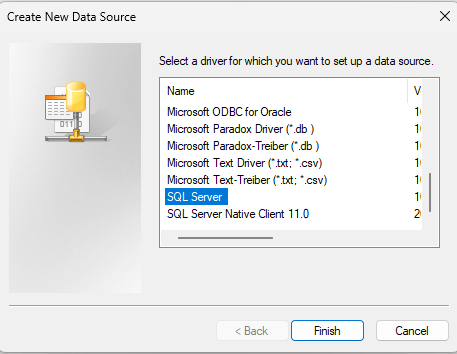
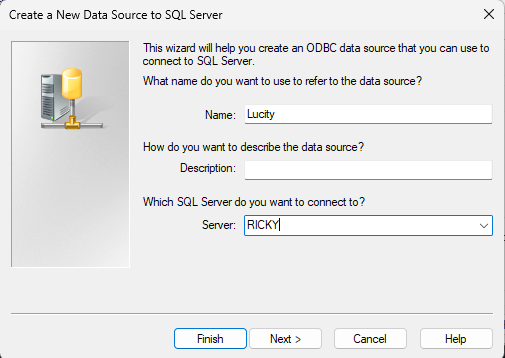
Then name the connection “Lucity” and type in “RICKY” (One of our current GIS Server’s) for the server.
Next, choose “With SQL Server authentication using a login ID and password entered by the user”.
The login ID should be “Lucity_User”. The password should be known by GIS Staff.
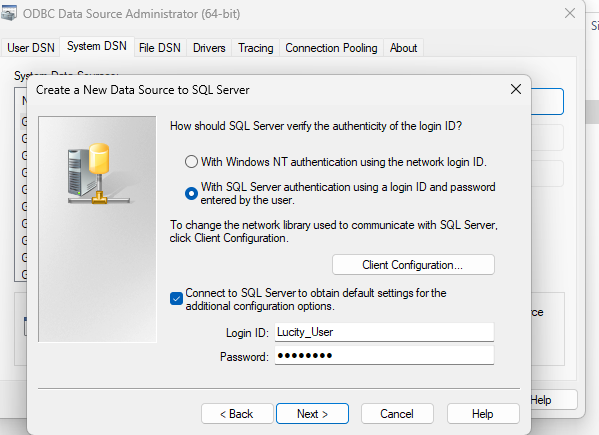
You can leave the next two prompts as is, then finish.
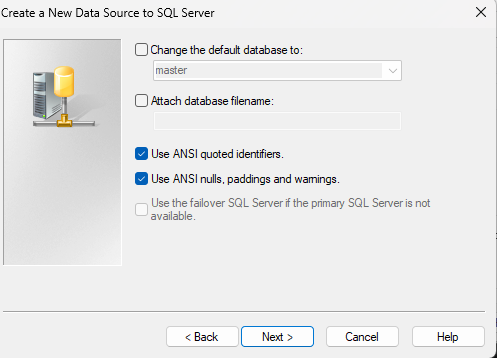
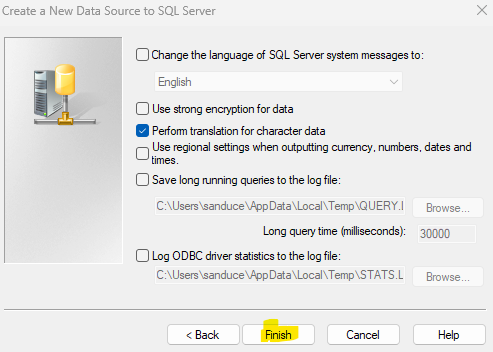
Choose Apply once you are back to the ODBC Data Source Administrator screen, which should now include Lucity under system DSN. Have the user try to access the database now.
If still facing issues, try referencing this document in google drive
https://docs.google.com/document/d/11HReCkIfI_45upulRub8uvG9Hcp3Xyz6/edit
“Migrate ODBC Connections to new PC”
Was this article helpful?
That’s Great!
Thank you for your feedback
Sorry! We couldn't be helpful
Thank you for your feedback
Feedback sent
We appreciate your effort and will try to fix the article