
MIS Department Policy & Procedure
Document Name: | Setting up a Non-Domain computer | Document Type: | Procedure |
Written by: | Christopher Sandu | Date/Revision Date: | 2/27/2025 |
Setting up a non-domain computer
In general, all computers should be added to the domain and the Windows Setup Process | New Computer KB should be followed when doing so. However, in rare cases with approval from the MIS Director and the respective department the device would go to, we might leave a computer off of the domain, and not allow it to access the network.
- You will still follow the Windows Setup Process KB, https://rochesterhills.freshdesk.com/a/solutions/articles/150000201822/edit
- No need to go through the User Setup steps, since we won’t be setting this up for a RH user. An example of when a non-domain computer might be approved is the Museum Volunteers, who won’t be accessing anything with a Rochester Hills account or email.
- *Optional* Once the computer has all the core software and updates pushed from PDQ locate the local admin password in LAPS. Login as local admin to the computer.
- *Optional* You can do this from the windows login screen by selecting “Other User”-> and typing in “.\mis”-> followed by the password for the local admin account. Once confirming that it works
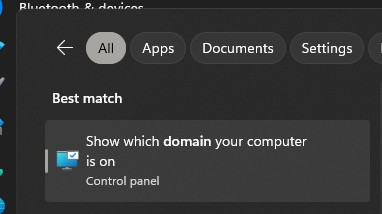
- Type in workgroup or domain into the windows search bar, select “Show which domain your computer is on”
- Towards the bottom, select domain or workgroup
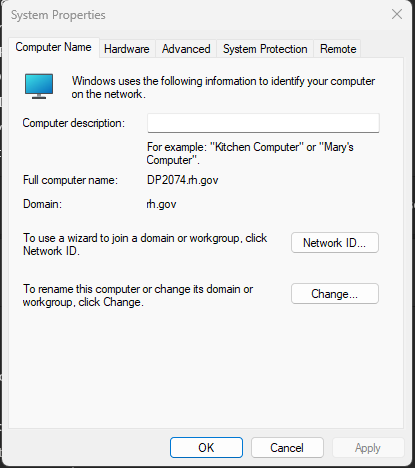
- Select Change next to “To rename this computer or change its domain…”
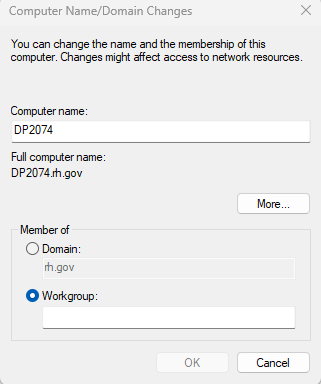
- Click on the circle for workgroup, and insert name “Default” or any generic name.
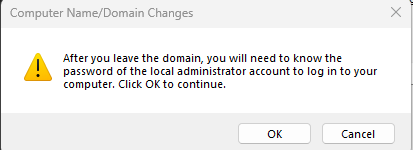
- Select Ok on the following prompt.
- Once complete, enter admin creds.
- In either order, uninstall Duo Multifactor from the programs and applications. Then reboot the computer.
- Once the computer is reboot, you will need to sign in as local admin, and create a profile for the user who will be accessing this non-domain device.
- Open Settings
- Select Accounts
- Select Other Users
- Select Add Account
- Select I don’t have this persons sign-in information
- Select add a user without a Microsoft account
- Enter account information (in our case, we used the name Volunteer and set a static password)
Was this article helpful?
That’s Great!
Thank you for your feedback
Sorry! We couldn't be helpful
Thank you for your feedback
Feedback sent
We appreciate your effort and will try to fix the article