MIS Department Policy & Procedure
Header
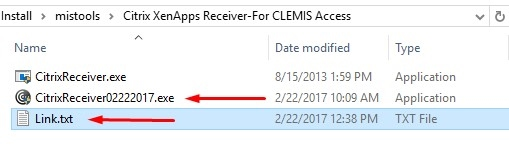
When installing Citrix for use with Clemis for the Fire Department, install the Citrix Receiver from G:\Install\mistools\Citrix XenApps Receiver-For CLEMIS Access\CitrixReceiver02222017.exe
Works best in Chrome: Visit the NFIRS link (saved in a .txt file in the same folder noted above).
Click the Download button, but just close the browser window that opens at the Citrix site, since you've already installed the Receiver. Then click the Continue button and move on to the login.
Check KeePass for the username and password for the Citrix login.
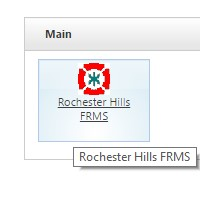
Click the Rochester Hills FRMS link:
If you get a download at the bottom of the screen asking you to open the .ica file, you need to set the Default Program for that file format to the following executable (Control Panel => Default Programs => Associate a file type . . .)
C:\Program Files (x86)\Citrix\ICA Client\wfcrun32.exe
IMPORTANT FOR TABLETS USING A DOCKING STATION: There are issues with DPI scaling when using a docking station. You need to go to the Properties setting for the above executable and click "Disable display scaling on high DPI settings" under the Compatibility tab.
Was this article helpful?
That’s Great!
Thank you for your feedback
Sorry! We couldn't be helpful
Thank you for your feedback
Feedback sent
We appreciate your effort and will try to fix the article