
MIS Department Policy & Procedure
Overview
This document should guide you through the creation of a new user in CivicRec. Any employee with an on-prem Active Directory account should be processed using these instructions.
Azure Procedure
Ensure that the user has been created in Active Directory.
Log into Azure (Entra) portal at this location (subject to change at Microsoft’s discretion).
Check to see if the user has been synchronized there by clicking “Users” and then searching for the appropriate user. If the user is missing, but was just created in AD, then a Azure AD Connect may need to be performed manually, as this may not have occurred yet.
Log into Babbages with your domain admin account.
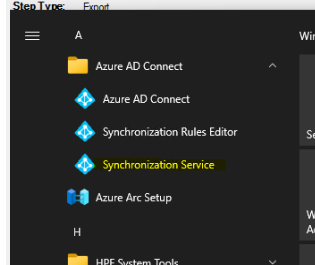
Open the Azure AD Connect Synchronization Service
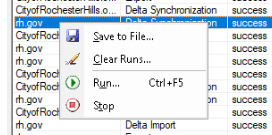
Right click rh.gov in the logs and select “Run…”
Select “Full Synchronization” and click “OK”
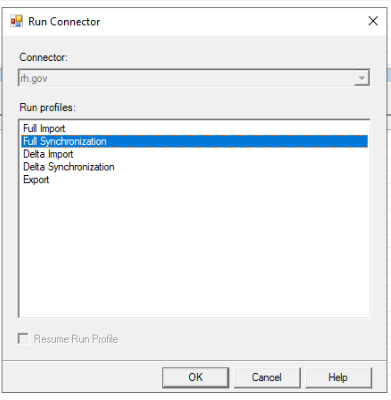
Perform the same steps for CityofRochesteHills.onmicrosoft.com.
Check to make sure that the synchronization is successful.

The new user should now be synced to Azure/Entra
Go to the Entra home page and select “Enterprise Applications”. You should see CivicPlus listed in the list of applications.

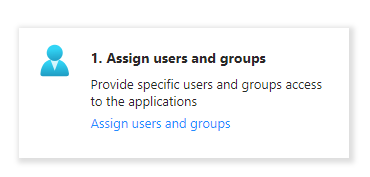
Now, select “Assign users and groups”
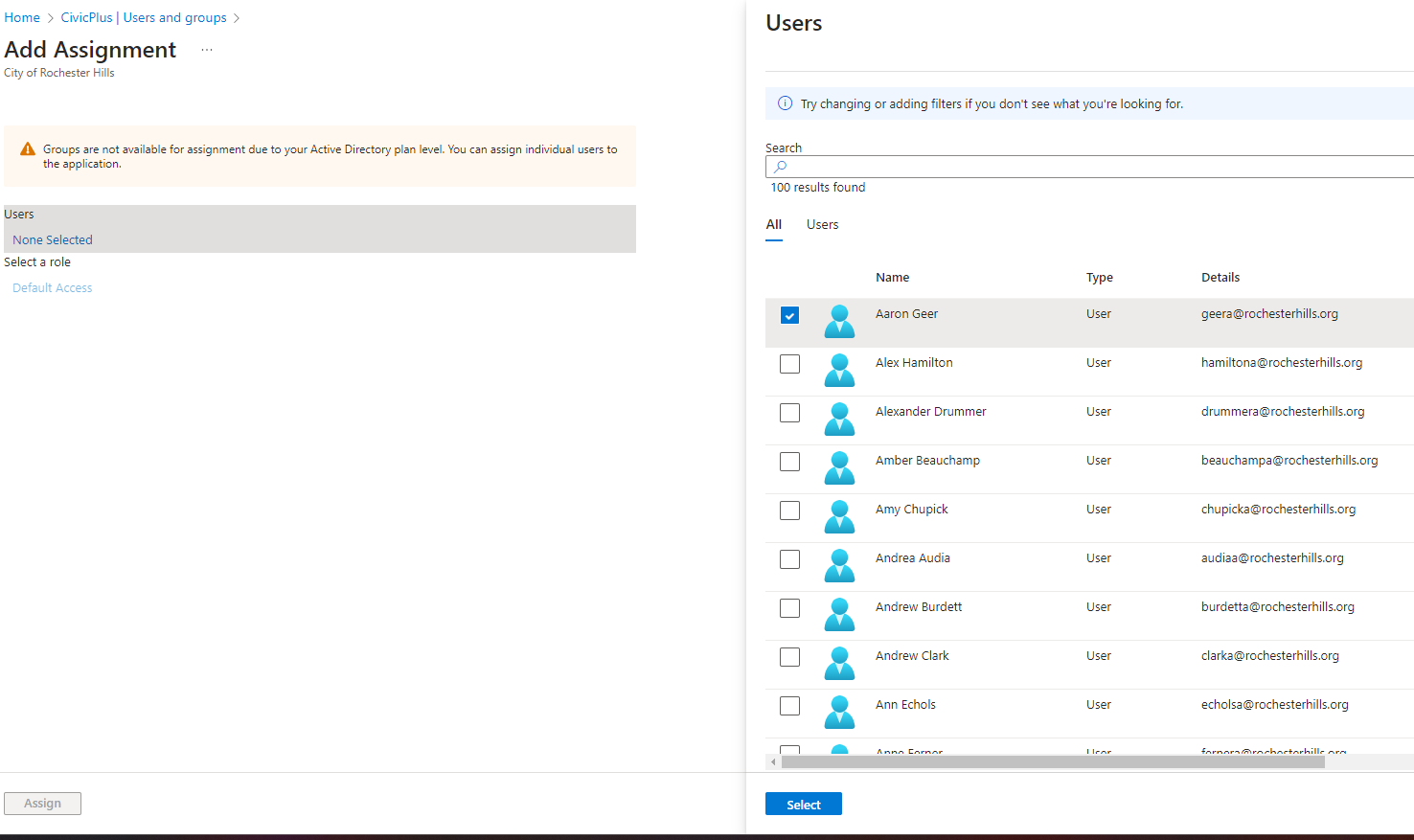
Now, select “Add user/group”, and then under Users, you will see a clickable link for “None Selected”. Click that and then select the user you’d like to add, then click “Select” at the bottom..
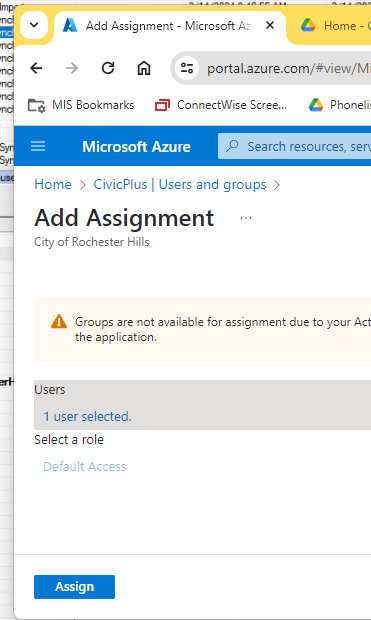
Finally, click “Assign” at the bottom to complete the assignment.
User Enrollment
Using your CivicPlus admin account, log into the admin console here.
Select “Setup New Account”

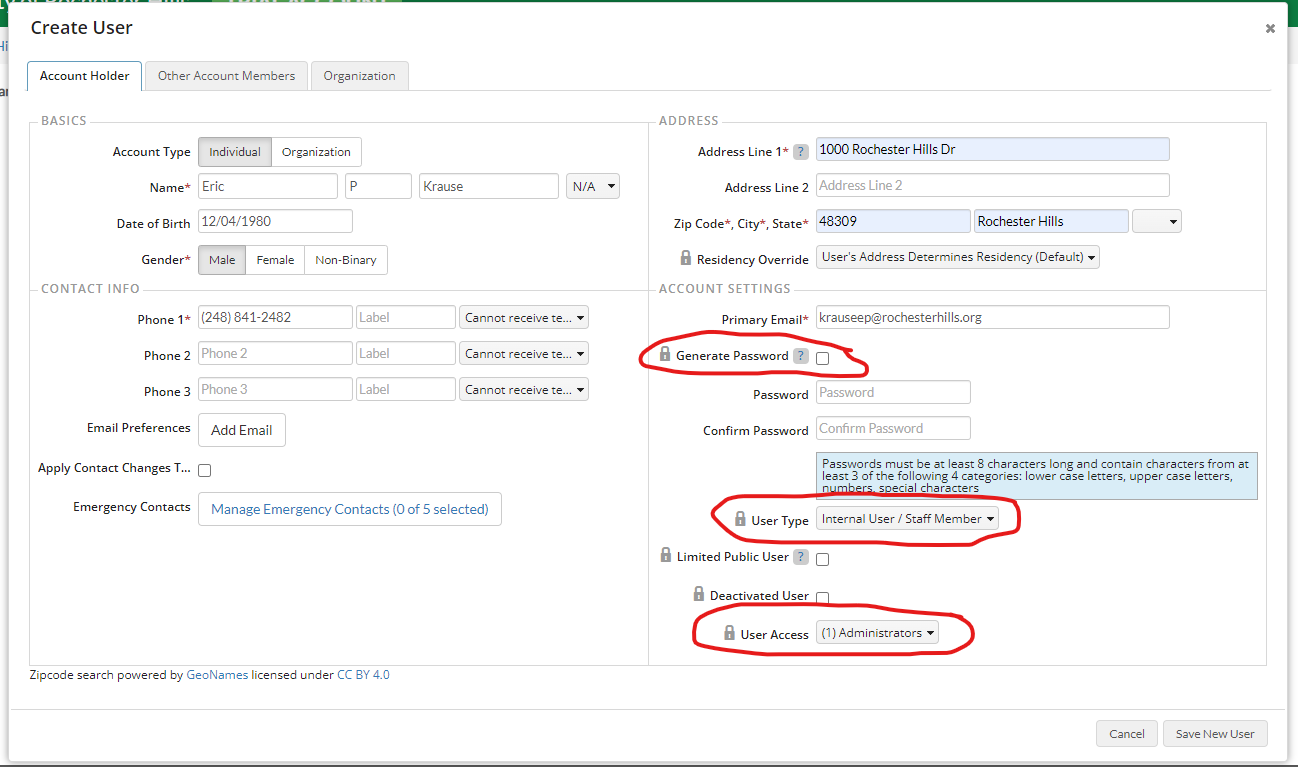
Now, create the user with the email address associated with their account in Azure. Make sure to uncheck the “Generate Password” box. You shouldn’t specify a password, since they will be using their Active Directory Password. Also, make sure to select “Internal User/Staff Member” and the appropriate User Access for the user.
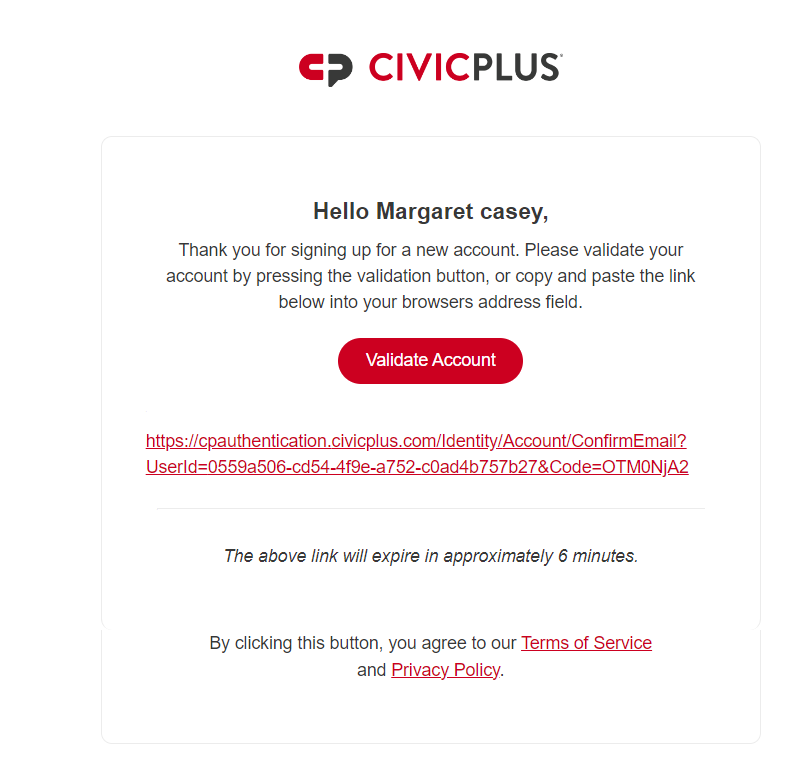
The user will get an email similar to the one below. The user must click the link within 6 minutes of receiving the email. If they do not, then they will receive another validation email when the link is clicked. This resets the timer and they must then click “Validate Account” within the 6 minutes allotted.
Now, have the user navigate to https://secure.rec1.com and input their email address.
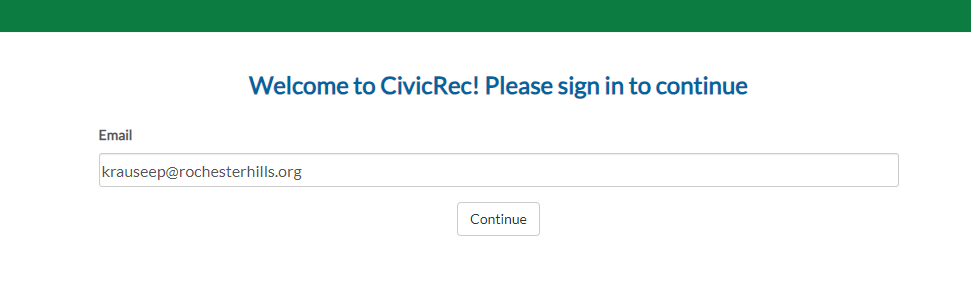
They will have to input their email address again on the next screen. We recommend clicking “Remember Me” for the next time the user has to log in.
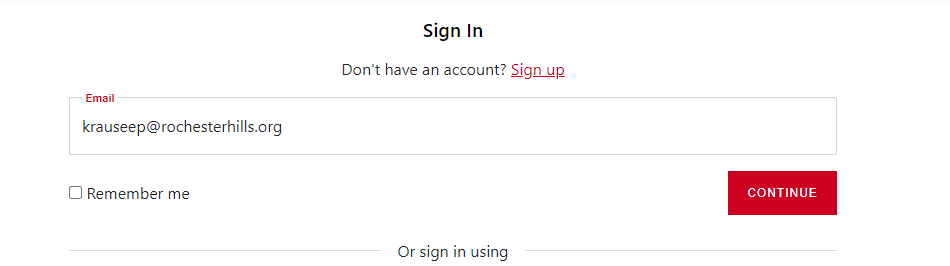
And they will have to enter their email address again on the next screen.
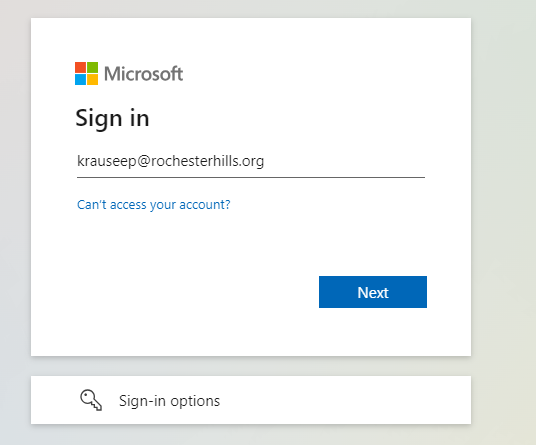
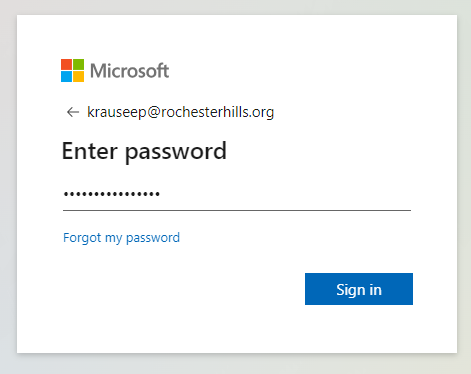
Now, the user must input their Windows login password (aka Active Directory) password.
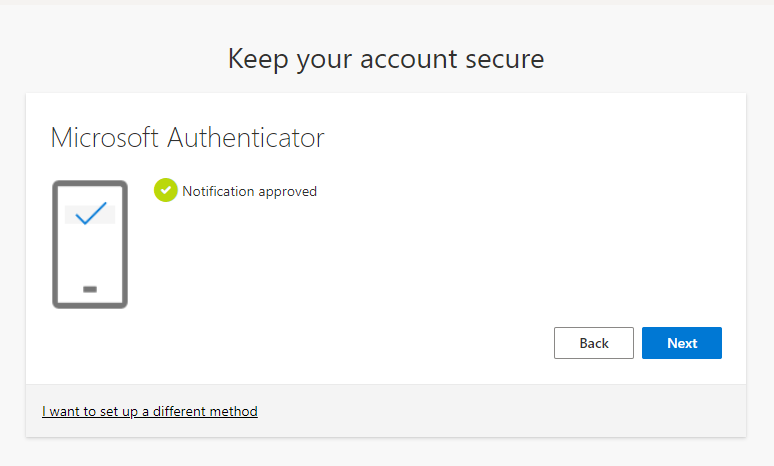
If the user hasn’t set up Microsoft MFA on their account, they will now be prompted to set it up using the Microsoft Authenticator app. The user will need to download and install the app from their respective app store. For Android and Apple.
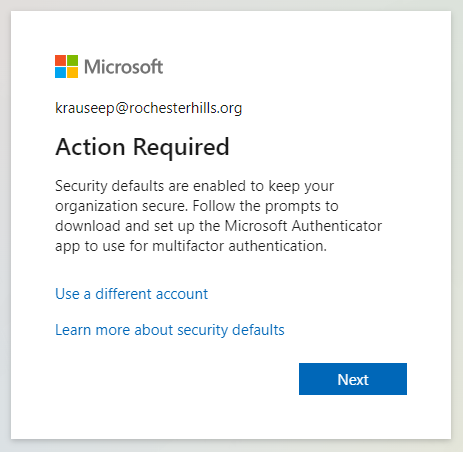
Have the user go through the prompts in the following screenshots.
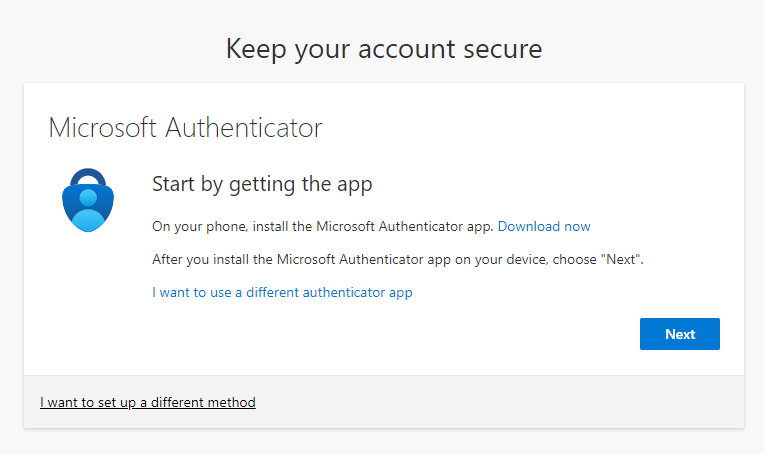
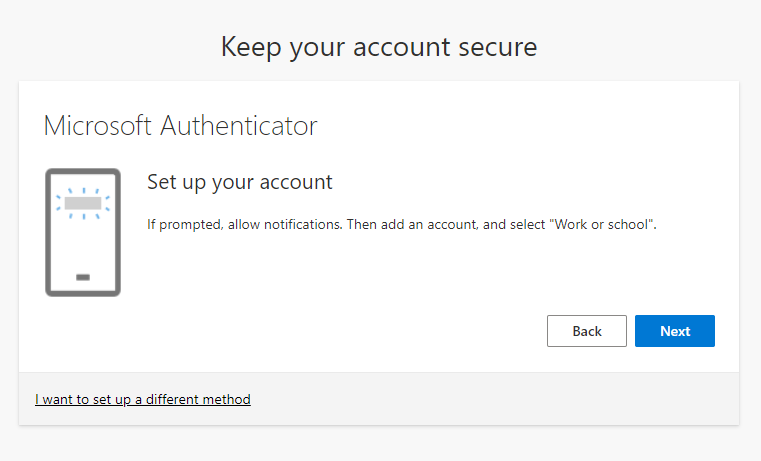
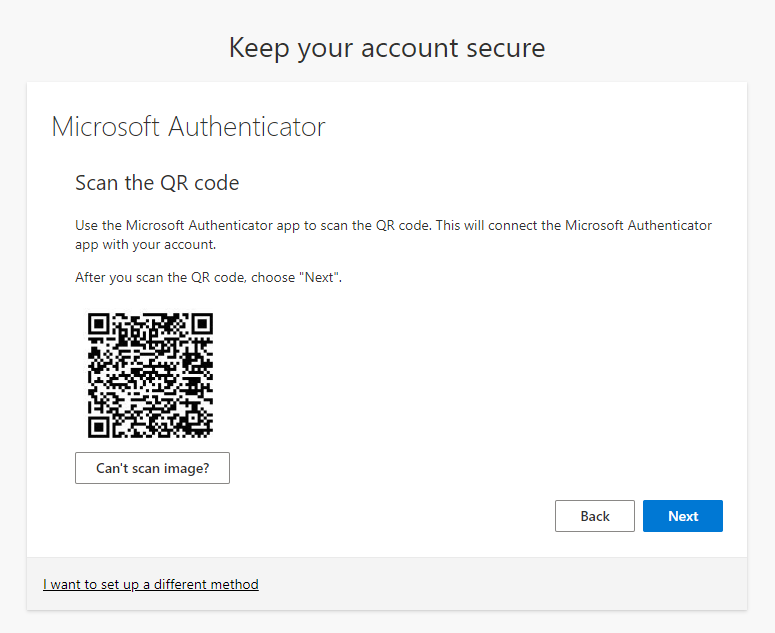
The user will be asked to test the Authenticator app. Once successful, they will see the following.
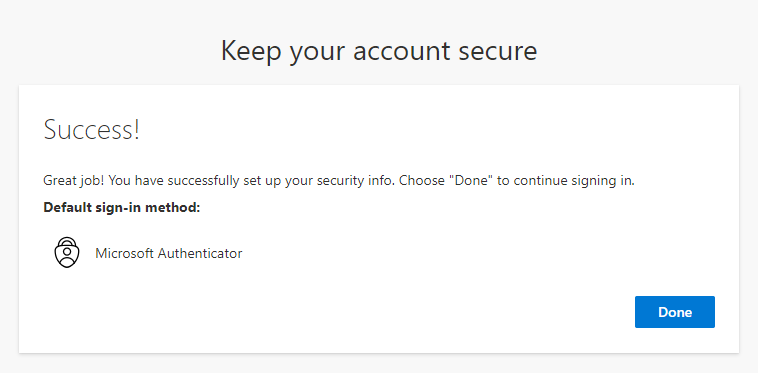
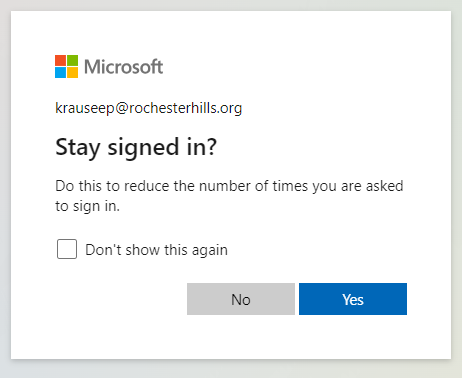
The user will then be prompted to “Stay signed in”. In order to reduce authentication prompts, we recommend staying signed in by clicking “Yes” and checking the “Don’t show this again” box.
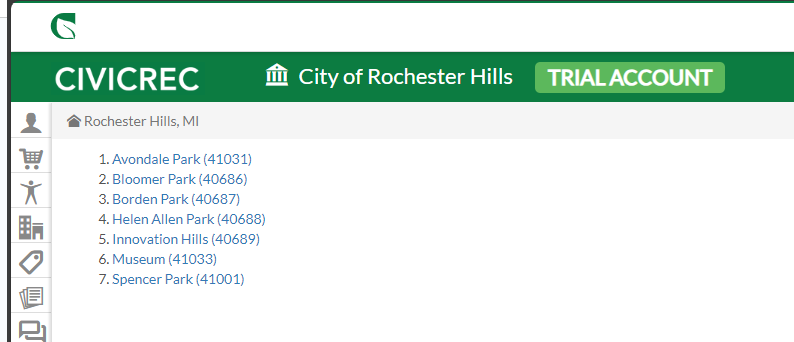
The user will now be signed into CivicRec.
Resetting MFA in Azure
Example: May be necessary if user gets new phone.
Was this article helpful?
That’s Great!
Thank you for your feedback
Sorry! We couldn't be helpful
Thank you for your feedback
Feedback sent
We appreciate your effort and will try to fix the article